
Can Auto Clicker Be Mapped to Keyboard? The Ultimate Guide to Enhancing Your Automation
Let’s be honest—reaching for your mouse to click a 'Start' button in the middle of a high-stakes game or a complex spreadsheet is clunky. Whether you're trying to max out your DPS in an RPG or flying through repetitive data entry, you've probably wondered: can an auto clicker be mapped to a keyboard?
The short answer is a resounding yes. In fact, in 2026, mapping your auto clicker to your keyboard isn't just an option—it's the most efficient way to work. By assigning a specific key to trigger your taps, you get a level of control that mouse-only navigation just can't touch. In this guide, we’ll look at how to turn your keyboard into an automation powerhouse.
---
Mapping these functions to 'hotkeys' offers some serious advantages that go beyond just convenience:
1. Precision Timing: Keyboard hotkeys let you activate clicking at the exact millisecond you need it, without moving your cursor off-target. 2. Ergonomic Relief: Constant manual clicking is a one-way ticket to 'Smartphone Thumb' or Carpal Tunnel. A single keyboard tap to start a thousand clicks saves your joints from the grind. 3. Seamless Multitasking: You can keep your cursor exactly where it needs to be while your left hand toggles the automation on and off. 4. Hardware Synergy: Many modern mobile gaming setups now support external keyboards, allowing you to use physical keys to trigger complex screen-tapping sequences.
---
Before you dive into the settings, it’s helpful to know the two main ways people use their keyboards for automation:
---
Setting this up is easier than you think, especially if you're using a mobile-first tool. Here’s how to do it with Auto Clicker - Automatic Tap:
---
While mapping to a keyboard is safe for your hardware, always keep these 'Rules of the Road' in mind:Check Game Policies: Some multiplayer games (like Roblox or Minecraft) have strict rules against high-speed macros. Always use the 'Randomize' feature in Auto Clicker - Automatic Tap to make your clicks look more human and stay off the ban-list.
Avoid System Overload: Setting a click rate to 1ms can sometimes cause your device to freeze. Always start slow and work your way up to find your phone's 'sweet spot.'
Stay Present: Never leave a keyboard-mapped clicker running while you're in another room. If a moderator messages you and you don't respond while perfectly clicking, it’s an immediate red flag.
So, can an auto clicker be mapped to a keyboard? Absolutely. Whether you're using a simple utility like Auto Clicker - Automatic Tap or a complex scripting setup, moving your triggers to your keys is a total game-changer. It gives you better ergonomics, superior control, and a much smoother digital experience.
Stop fumbling with screen menus and start using your keyboard to its full potential. Give it a try today and see how much time (and thumb-strain) you can save!
The short answer is a resounding yes. In fact, in 2026, mapping your auto clicker to your keyboard isn't just an option—it's the most efficient way to work. By assigning a specific key to trigger your taps, you get a level of control that mouse-only navigation just can't touch. In this guide, we’ll look at how to turn your keyboard into an automation powerhouse.
---
Why Map Your Clicker to Your Keyboard?
Mapping these functions to 'hotkeys' offers some serious advantages that go beyond just convenience:
1. Precision Timing: Keyboard hotkeys let you activate clicking at the exact millisecond you need it, without moving your cursor off-target. 2. Ergonomic Relief: Constant manual clicking is a one-way ticket to 'Smartphone Thumb' or Carpal Tunnel. A single keyboard tap to start a thousand clicks saves your joints from the grind. 3. Seamless Multitasking: You can keep your cursor exactly where it needs to be while your left hand toggles the automation on and off. 4. Hardware Synergy: Many modern mobile gaming setups now support external keyboards, allowing you to use physical keys to trigger complex screen-tapping sequences.
---
Hotkey Triggering vs. Macro Mapping
Before you dive into the settings, it’s helpful to know the two main ways people use their keyboards for automation:
1. The Hotkey Trigger
This is the most common method. You choose a key (like 'Volume Up' or a specific letter on a Bluetooth keyboard) to act as a master switch. When you press it, your app—like Auto Clicker - Automatic Tap—starts tapping wherever your target is placed on the screen.2. Full Macro Mapping
This is for the power users. It involves making a specific key act as a tap. For example, you could map your 'Spacebar' so that as long as you hold it down, the phone registers 50 taps per second. This is huge in the competitive gaming community for gaining a speed edge.---
Step-by-Step: How to Map Your Clicker to Your Keys
Setting this up is easier than you think, especially if you're using a mobile-first tool. Here’s how to do it with Auto Clicker - Automatic Tap:
Step 1: Enable the Floating Menu
Open the app and turn on the floating control panel. This panel acts as your visual 'bridge' between the keyboard and the screen.Step 2: Connect Your Device
If you're using a physical keyboard with your phone (via Bluetooth or USB-C), ensure it's recognized by your OS. Most modern Android and iOS devices will treat it as a standard input device immediately.Step 3: Assign the Hotkey
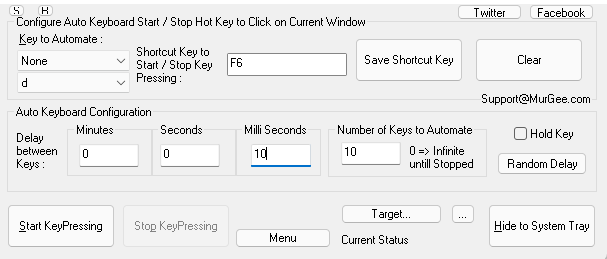
In the app settings, look for 'Hotkey Configuration.' Click 'Change' and then tap the physical key on your keyboard you want to use as your 'Start/Stop' trigger. Many users prefer the Tilde (~) or Numpad keys because they are out of the way.Step 4: Set Your Interval
Decide how fast you want the taps to occur. For most games, 100 milliseconds is a safe, natural-looking speed. If you're doing high-speed stress testing, you can go lower, but watch out for system lag!Step 5: Test and Refine
Hover your target over a safe area and hit your new keyboard hotkey. The automation should start instantly. Hit it again to kill the process. Simple, right?---
Safety and Best Practices
While mapping to a keyboard is safe for your hardware, always keep these 'Rules of the Road' in mind:
Conclusion
So, can an auto clicker be mapped to a keyboard? Absolutely. Whether you're using a simple utility like Auto Clicker - Automatic Tap or a complex scripting setup, moving your triggers to your keys is a total game-changer. It gives you better ergonomics, superior control, and a much smoother digital experience.
Stop fumbling with screen menus and start using your keyboard to its full potential. Give it a try today and see how much time (and thumb-strain) you can save!