
Can You Auto Click on Chrome? Your Complete 2026 Guide to Browser Automation
In the fast-paced digital world of 2026, efficiency is everything. Whether you're a developer testing a new UI, a gamer tackling a browser-based RPG, or just someone tired of clicking through endless data pages, the question is common: Can you auto click on Chrome?
The answer is yes. Chrome remains one of the most flexible browsers, and in 2026, the methods for automation have become even more refined. From seamless extensions to native scripts, you can easily reclaim your time and save your wrists from repetitive strain. This guide covers the most stable and modern ways to get the job done.
---
For most people, extensions are the go-to solution. They integrate directly into the browser and don't require you to touch a single line of code. In 2026, these tools have been optimized for the latest Manifest V3 standards, ensuring they are faster and more privacy-compliant.
Install: Head to the Chrome Web Store and search for a verified auto clicker.
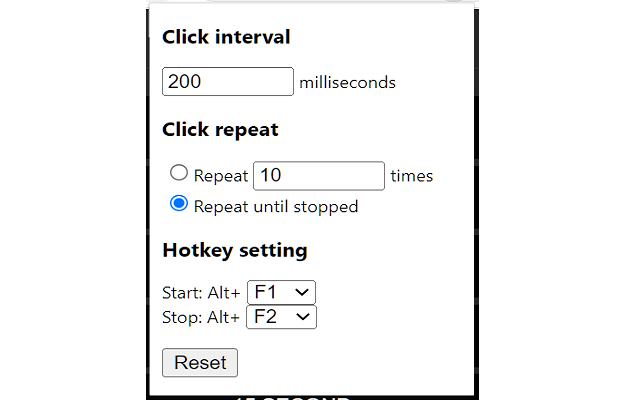
Configure: Set your interval. For 2026 web standards, a 100ms to 500ms delay is the 'sweet spot' to prevent the tab from freezing.
Targeting: Use the extension's 'Pick Element' feature to lock the click onto a specific button so it stays accurate even if you scroll.
---
If you're on a work computer or don't want to clutter your browser with extensions, Chrome’s Developer Tools provide a built-in way to automate. This method is incredibly stable because it runs natively within the page's own engine.
4. To stop the clicking, just refresh the page or type
---
Sometimes the thing you need to click isn't just a button on a page—it might be a browser tab, a system popup, or a navigation bar. For this, you need software that controls your actual mouse cursor at the OS level.
OP Auto Clicker 3.0: Still the champion for Windows users. It's simple, doesn't require installation, and works across the entire screen.
Murgaa (macOS): The best choice for Mac users, offering high-precision clicking and complex macro support.
A Note on Safety: In 2026, many websites use behavioral analysis to detect 'perfect' patterns. If you're using external software, always enable Randomization. Setting a range (e.g., clicking between 100ms and 150ms) makes your automation look much more human and keeps your account standing healthy.
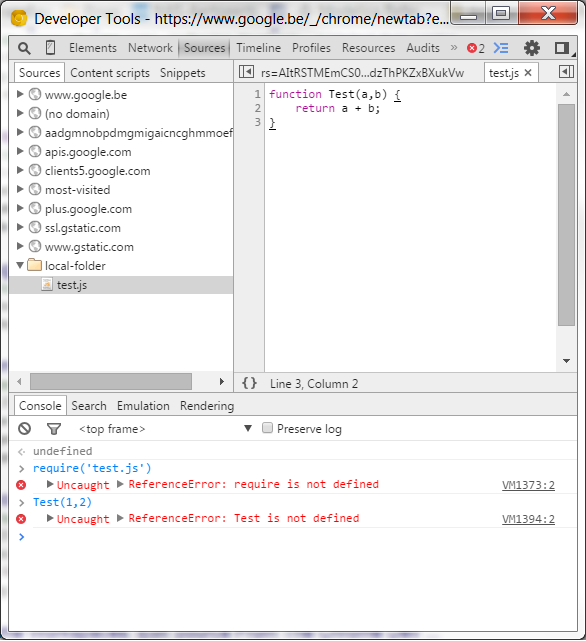
[Image showing a Chrome browser window with the Developer Console open and a script running]
---
Start Slow: Never start with a 1ms interval. Modern web pages are heavy; clicking too fast can crash the tab or trigger a temporary IP rate-limit.
Check the Rules: Always respect a site's Terms of Service. Automation on banking or highly secure government sites is never recommended.
Use Target-Specific Clicking: Whenever possible, tell the software *which* button to click rather than just clicking where the mouse happens to be. This prevents accidental clicks if a popup appears.
You absolutely can auto click on Chrome, and the best part is that you don't need to be a programmer to do it. Whether you choose a user-friendly extension, a quick console script, or desktop software, you can effectively eliminate repetitive tasks in seconds. By setting human-like intervals and using the right tools, you'll be more productive and give your mouse hand a much-needed break. Happy automating!
The answer is yes. Chrome remains one of the most flexible browsers, and in 2026, the methods for automation have become even more refined. From seamless extensions to native scripts, you can easily reclaim your time and save your wrists from repetitive strain. This guide covers the most stable and modern ways to get the job done.
---
Method 1: Chrome Extensions (The 2026 Standard)
For most people, extensions are the go-to solution. They integrate directly into the browser and don't require you to touch a single line of code. In 2026, these tools have been optimized for the latest Manifest V3 standards, ensuring they are faster and more privacy-compliant.
Top Extensions to Use
1. Auto Clicker Pro: A highly rated tool that allows for specific element targeting, meaning it clicks the button even if you move the page. 2. CTO Automation Suite: Perfect for complex workflows where you need to click multiple buttons in a specific order. 3. Smart Clicker: Uses simple AI to recognize 'Buy' or 'Next' buttons automatically across different sites.How to Set It Up
---
Method 2: The 'No-Install' JavaScript Console Trick
If you're on a work computer or don't want to clutter your browser with extensions, Chrome’s Developer Tools provide a built-in way to automate. This method is incredibly stable because it runs natively within the page's own engine.
Quick Scripting Steps
1. PressF12 or Ctrl+Shift+I to open the Developer Tools.
2. Click the Console tab.
3. Paste the following 2026-optimized script to click a button every second:var clickTimer = setInterval(function() {
var btn = document.querySelector('.action-button-class'); // Replace with your button's class
if (btn) btn.click();
}, 1000);
4. To stop the clicking, just refresh the page or type
clearInterval(clickTimer);.---
Method 3: External Hardware-Level Software
Sometimes the thing you need to click isn't just a button on a page—it might be a browser tab, a system popup, or a navigation bar. For this, you need software that controls your actual mouse cursor at the OS level.
A Note on Safety: In 2026, many websites use behavioral analysis to detect 'perfect' patterns. If you're using external software, always enable Randomization. Setting a range (e.g., clicking between 100ms and 150ms) makes your automation look much more human and keeps your account standing healthy.
[Image showing a Chrome browser window with the Developer Console open and a script running]
---
Best Practices for Browser Automation
Conclusion: Automate with Ease
You absolutely can auto click on Chrome, and the best part is that you don't need to be a programmer to do it. Whether you choose a user-friendly extension, a quick console script, or desktop software, you can effectively eliminate repetitive tasks in seconds. By setting human-like intervals and using the right tools, you'll be more productive and give your mouse hand a much-needed break. Happy automating!