
Can't Click Auto Block on iPhone? Troubleshooting and Solutions for iOS Automation
For users who rely on automation to streamline their digital workflows, there is nothing more frustrating than a technical glitch that stops you in your tracks. Specifically, if you find that you can't click auto block on iPhone, you are likely dealing with the complex intersection of iOS security, accessibility features, and software limitations.
In 2026, with the latest updates to iOS, Apple has further tightened its 'sandboxing' rules to prevent unauthorized screen overlays. This can make setting up an auto-clicking script feel like navigating a maze. In this guide, we will explore why these 'blocks' occur and provide current, step-by-step solutions to get your iPhone automation back on track.
---
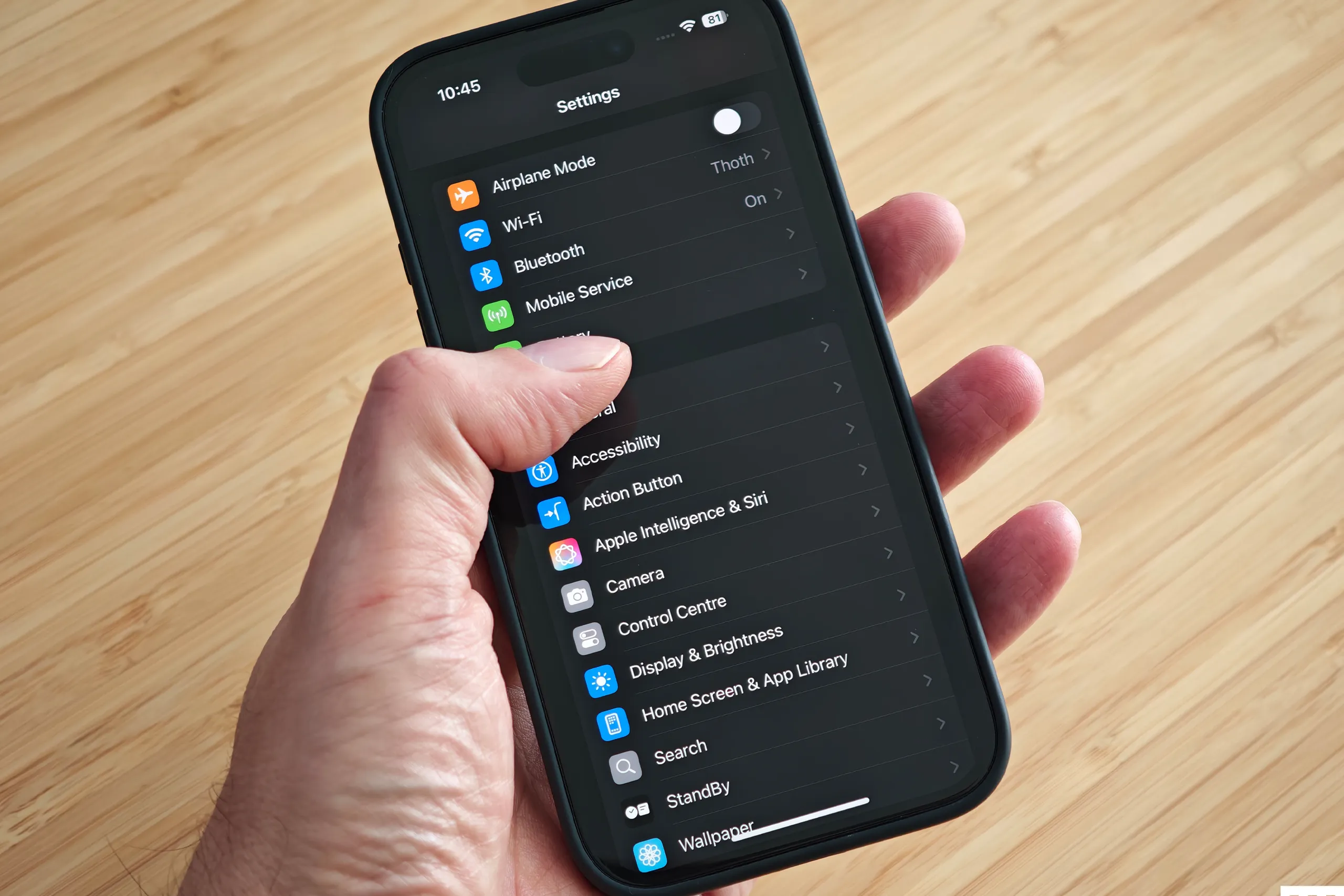
First, it is important to define what we mean by 'auto block.' Unlike Android, iOS does not allow third-party apps to 'draw over' other apps or simulate touches directly. This is a security measure known as sandboxing.
When users say they can't click an auto block, they are usually referring to one of three things: 1. Switch Control Recipes: A built-in accessibility feature that allows for pre-recorded taps. 2. Shortcuts Automation: Using the native Apple Shortcuts app to trigger actions. 3. UI Unresponsiveness: A security layer preventing an automated tap from registering (often seen as an 'Invalid Configuration' message).
---
Before diving into the fixes, let’s look at the underlying reasons why your device might be ignoring your automation attempts.
---
If you are stuck and can’t click the auto block, follow these troubleshooting steps to restore functionality.
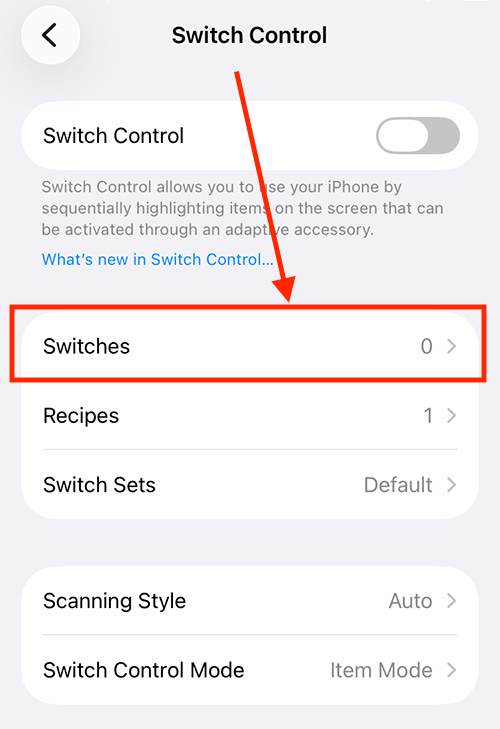
Go to Settings > Accessibility > Switch Control > Recipes.
Change Launch Recipe to None.
Triple-click the side button to activate Switch Control, then triple-click again to turn it off.
Go back and re-select your desired recipe as the Launch Recipe. This often clears 'Invalid Configuration' glitches.
Go to Settings > Accessibility > Touch > Touch Accommodations.
Ensure Ignore Repeat is toggled OFF.
---
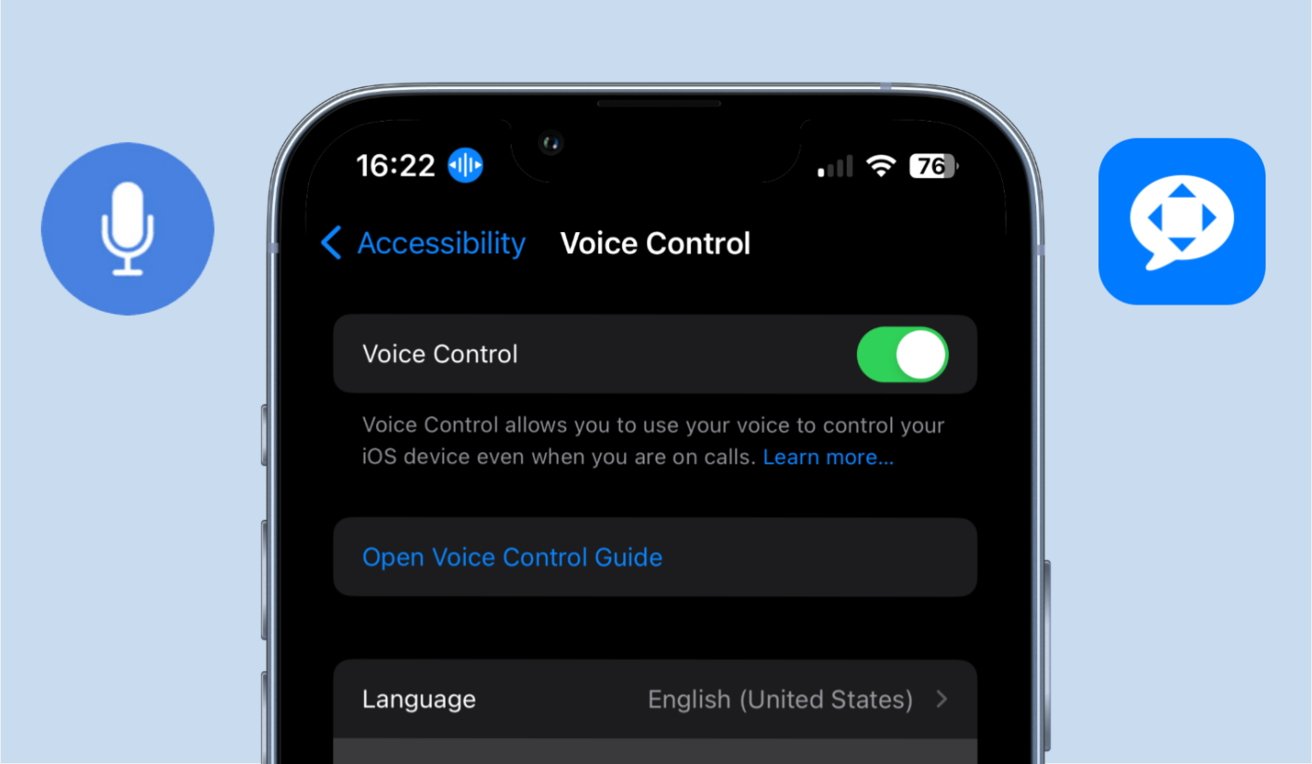
For those finding Switch Control too cumbersome, Voice Control is a powerful alternative that is rarely blocked by system security overlays.Go to Accessibility > Voice Control and turn it ON.
Tap Customize Commands > Create New Command.
Set a phrase like 'Press Auto Block' and under Action, select Run Custom Gesture.
Record the tap on the block location.
This method allows you to trigger the click with a voice command, bypassing the complex queueing system of Switch Control.
---
Low Power Mode: This can throttle the processing power for accessibility features, causing automated taps to lag or fail.
Guided Access Conflict: Running Guided Access and Switch Control simultaneously can lead to UI locks. Choose one method for your automation needs.
Screen Time Restrictions: Check Settings > Screen Time > Content & Privacy Restrictions. If 'System Customization' is restricted, accessibility overlays may be blocked.
While the iPhone ecosystem values security above all else, the 'can't click auto block' issue is almost always a configuration hurdle. By refreshing your Launch Recipe, toggling off Ignore Repeat, or utilizing Voice Control, you can maintain your automation efficiency in 2026. Keep your iOS updated, and always re-verify your coordinates after a major app or system update.
In 2026, with the latest updates to iOS, Apple has further tightened its 'sandboxing' rules to prevent unauthorized screen overlays. This can make setting up an auto-clicking script feel like navigating a maze. In this guide, we will explore why these 'blocks' occur and provide current, step-by-step solutions to get your iPhone automation back on track.
---
Understanding the 'Auto Block' Issue on iOS
First, it is important to define what we mean by 'auto block.' Unlike Android, iOS does not allow third-party apps to 'draw over' other apps or simulate touches directly. This is a security measure known as sandboxing.
When users say they can't click an auto block, they are usually referring to one of three things: 1. Switch Control Recipes: A built-in accessibility feature that allows for pre-recorded taps. 2. Shortcuts Automation: Using the native Apple Shortcuts app to trigger actions. 3. UI Unresponsiveness: A security layer preventing an automated tap from registering (often seen as an 'Invalid Configuration' message).
---
Why Your iPhone Won't Register Automatic Taps
Before diving into the fixes, let’s look at the underlying reasons why your device might be ignoring your automation attempts.
1. The Screen Overlay Security
Apple’s iOS is designed to prevent 'tap-jacking.' If a system feature detects an overlay—such as a screen recorder or certain active accessibility tools—it may disable interaction with specific buttons to ensure a human is actually clicking. This is common in financial apps or settings menus.2. Switch Control Misconfiguration
If your recipe is not assigned correctly to a launch switch, or if you haven't assigned a 'Select Item' action to at least one switch, the 'auto block' area will remain unresponsive. In 2026, many users report that the 'Launch Recipe' setting often defaults to 'None' after a software update.3. Software Version Conflicts (iOS 19/20)
With recent updates, Apple has tweaked how accessibility protocols interact with third-party games. If you recently updated, your previous automation coordinates might be slightly 'offset' due to changes in how the system handles screen safe areas (the notch/Dynamic Island).---
How to Fix: Troubleshooting Your iPhone Automation
If you are stuck and can’t click the auto block, follow these troubleshooting steps to restore functionality.
Step 1: Refresh the Launch Recipe
A common 'quick fix' discovered by the community involves resetting the active recipe:Step 2: Check Touch Accommodations
If 'Ignore Repeat' is turned on, your auto-clicker may be getting filtered out as accidental noise.Step 3: Re-Recording with Proper Orientation
If the 'block' isn't responding, your coordinates may be off due to screen rotation. 1. Open Switch Control > Recipes > Create New Recipe. 2. Tap Assign a Switch > Full Screen > Custom Gesture. 3. Pro Tip: Rotate your phone to the exact orientation (landscape/portrait) you use for the target app before recording the tap.---
Using Voice Control: The 2026 'Stealth' Alternative
For those finding Switch Control too cumbersome, Voice Control is a powerful alternative that is rarely blocked by system security overlays.
This method allows you to trigger the click with a voice command, bypassing the complex queueing system of Switch Control.
---
Common Pitfalls to Avoid
Conclusion
While the iPhone ecosystem values security above all else, the 'can't click auto block' issue is almost always a configuration hurdle. By refreshing your Launch Recipe, toggling off Ignore Repeat, or utilizing Voice Control, you can maintain your automation efficiency in 2026. Keep your iOS updated, and always re-verify your coordinates after a major app or system update.