
Can You Get an Auto Clicker on iPhone? A Complete Guide to iOS Automation
If you’ve ever played a mobile game that requires endless tapping or had to perform repetitive tasks on your smartphone, you’ve likely wondered: "Can I get an auto clicker on iPhone?" For Android users, the answer is a simple download from the Play Store. However, in the Apple ecosystem, the situation is a bit more nuanced.
Because of Apple’s strict security and "sandboxing," traditional third-party auto-clicking software cannot control other apps like they do on desktop or Android. But that doesn't mean it’s impossible. In fact, your iPhone has a powerful, built-in feature called Switch Control that can act as a native auto clicker. In this 2026 guide, we’ll explore how to set this up safely and effectively.
---
Apple designs iOS with a focus on security and privacy. Each app runs in its own sandbox, meaning one app generally cannot interfere with or control the interface of another. While you might see apps claiming to be auto clickers, these are usually limited to specific web browsers within the app itself. To get a system-wide auto clicker for games like Roblox or Tap Titans, you must utilize iOS's built-in Accessibility features.
---
Switch Control is designed for users with limited mobility, but by creating a "Recipe," you can record a series of taps and loop them, creating a custom auto clicker.
2. Select Switch Control > Recipes > Create New Recipe.
3. Name it "Auto Clicker" and tap Assign a Switch > Full Screen > Custom Gesture.
4. On the recording screen, tap the area where you want the clicking to happen. Tap rapidly to simulate high speed, then tap Save.
2. Select your "Auto Clicker" recipe. This ensures that whenever Switch Control is active, your custom gesture runs.
2. Check Switch Control. Now, you can triple-click the Side Button (or Home Button) to toggle it on and off.
---
Open your game and triple-click the side button.
Pro Tip: iOS handles this via a "queue." Every time you tap the screen while Switch Control is active, it runs your recorded recipe once. If you tap the screen 20 times quickly, the iPhone will "buffer" those 20 cycles of your auto-clicker recipe. You can sit back and watch it work through the queue! To stop it, you usually need to let the queue finish or triple-click the side button again.
---
If you need to automate tasks (like sending texts or changing settings) rather than rapid tapping, the Shortcuts app is your best friend. While it can't simulate rapid-fire taps inside a 3rd-party game, it can automate complex workflows across your iPhone, from resizing images to managing smart home devices.
1. Watch for Overheating: Continuous tapping keeps the processor active and the screen on. In 2026, even with the latest chips, this generates heat. Keep your phone on a cool surface.
2. Battery Health: Avoid running long sessions while at 100% charge to prevent battery degradation. Use the "80% Limit" setting if available.
3. Screen Safety: Lower your brightness to prevent OLED burn-in during long AFK sessions.
So, can you get an auto clicker on iPhone? Yes—but it requires using built-in accessibility tools. By mastering Switch Control, you can create a customized tapping sequence for games or repetitive tasks without the risks of jailbreaking or shady third-party downloads. While iOS is more restrictive than Android, these built-in tools offer a perfect balance of power and security. Give it a try and take the manual labor out of your favorite apps!
Because of Apple’s strict security and "sandboxing," traditional third-party auto-clicking software cannot control other apps like they do on desktop or Android. But that doesn't mean it’s impossible. In fact, your iPhone has a powerful, built-in feature called Switch Control that can act as a native auto clicker. In this 2026 guide, we’ll explore how to set this up safely and effectively.
---
Why Traditional Auto Clickers Aren't on the App Store
Apple designs iOS with a focus on security and privacy. Each app runs in its own sandbox, meaning one app generally cannot interfere with or control the interface of another. While you might see apps claiming to be auto clickers, these are usually limited to specific web browsers within the app itself. To get a system-wide auto clicker for games like Roblox or Tap Titans, you must utilize iOS's built-in Accessibility features.
---
How to Set Up an iPhone Auto Clicker Using Switch Control
Switch Control is designed for users with limited mobility, but by creating a "Recipe," you can record a series of taps and loop them, creating a custom auto clicker.
Step 1: Create a Custom Gesture
1. Open Settings > Accessibility.2. Select Switch Control > Recipes > Create New Recipe.
3. Name it "Auto Clicker" and tap Assign a Switch > Full Screen > Custom Gesture.
4. On the recording screen, tap the area where you want the clicking to happen. Tap rapidly to simulate high speed, then tap Save.
Step 2: Assign and Launch
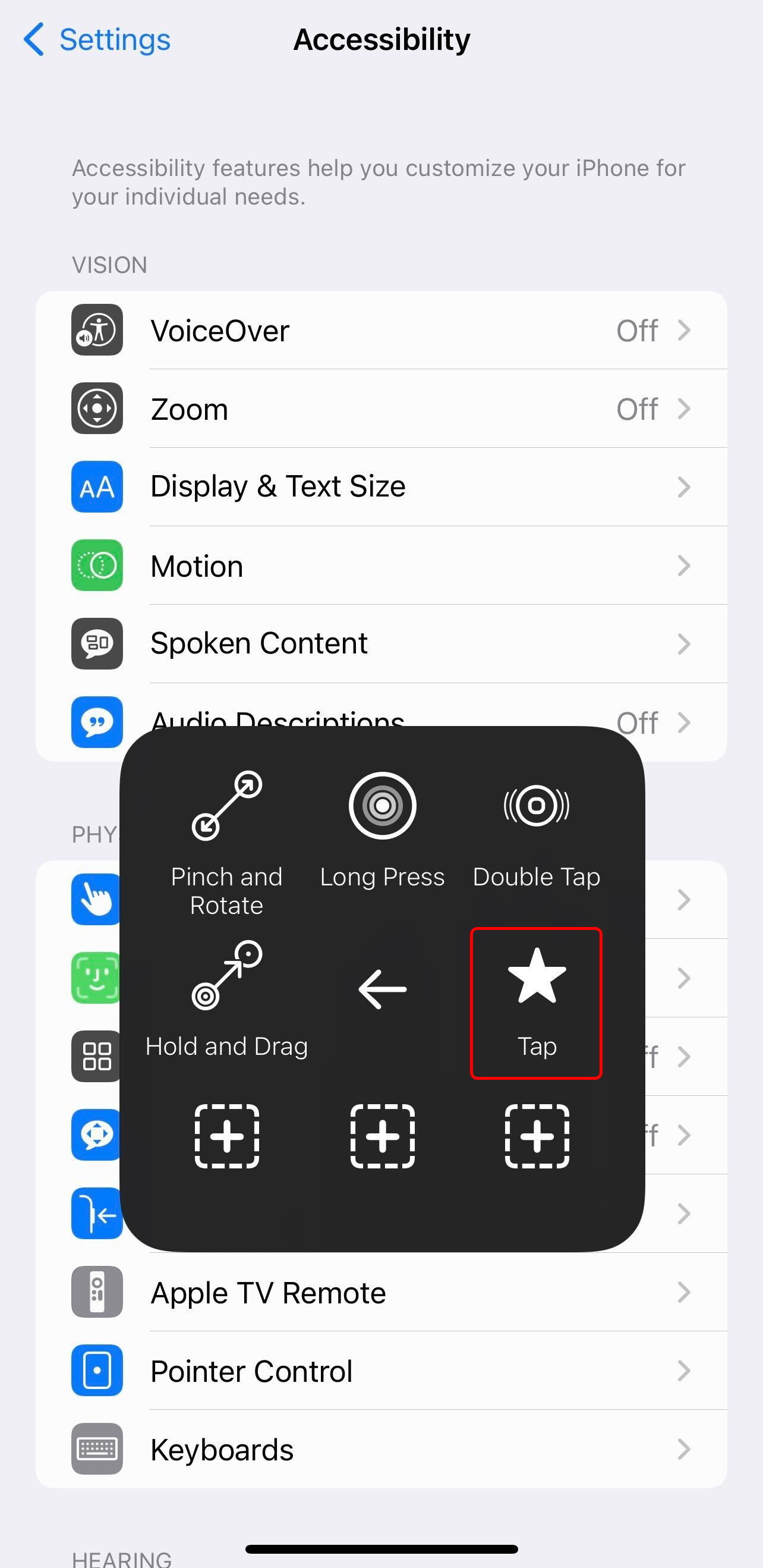
1. Go back to the Recipes menu and tap Launch Recipe.2. Select your "Auto Clicker" recipe. This ensures that whenever Switch Control is active, your custom gesture runs.
Step 3: Setup the Shortcut
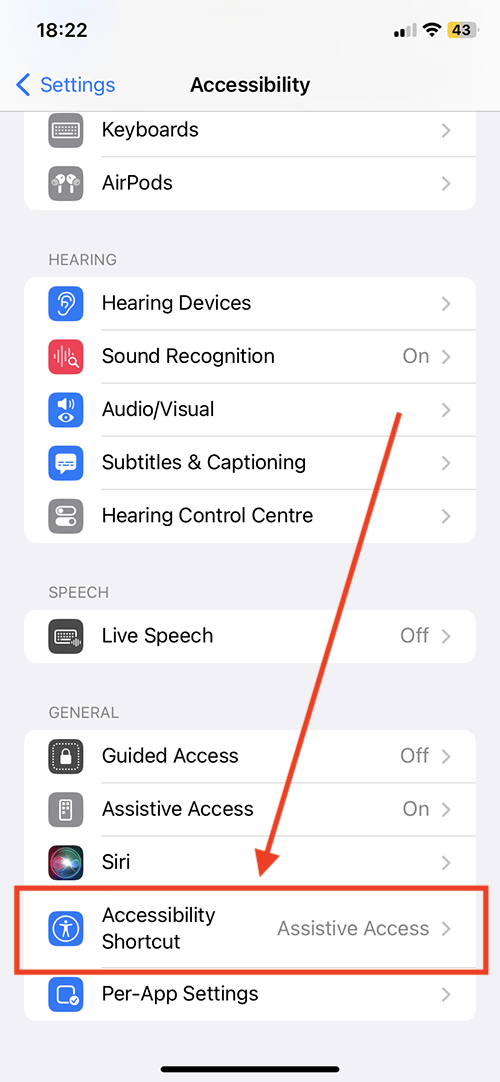
1. Go to Accessibility > Accessibility Shortcut (at the bottom).2. Check Switch Control. Now, you can triple-click the Side Button (or Home Button) to toggle it on and off.
---
How to Use Your iOS Auto Clicker
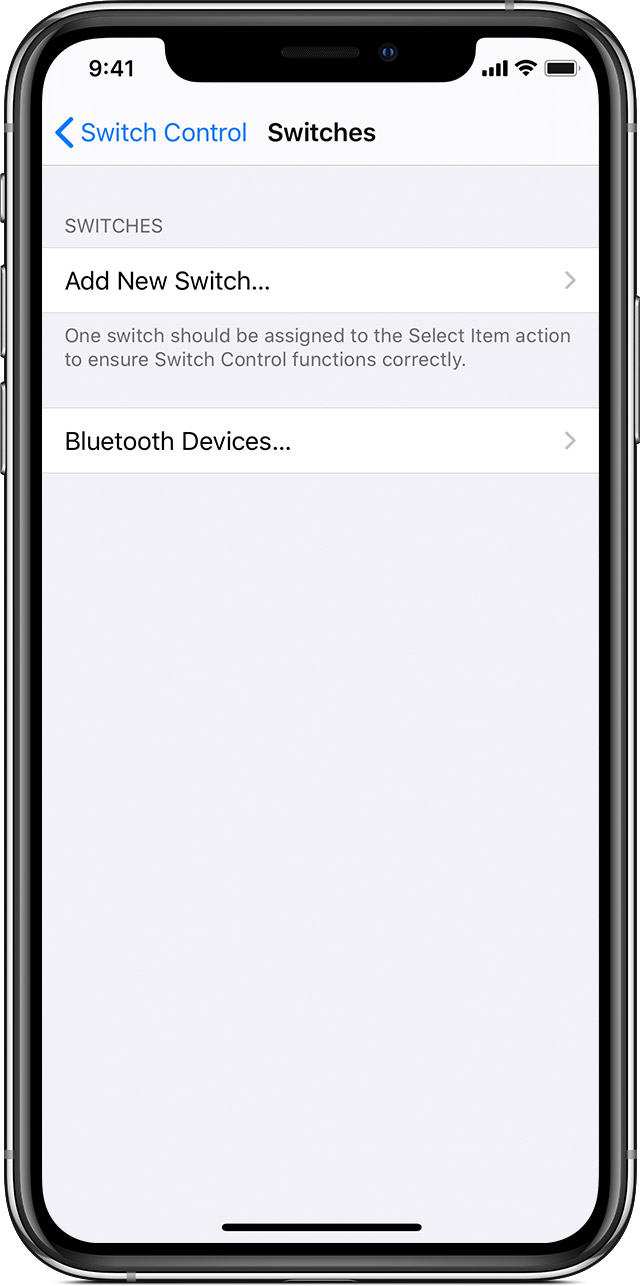
Open your game and triple-click the side button.
Pro Tip: iOS handles this via a "queue." Every time you tap the screen while Switch Control is active, it runs your recorded recipe once. If you tap the screen 20 times quickly, the iPhone will "buffer" those 20 cycles of your auto-clicker recipe. You can sit back and watch it work through the queue! To stop it, you usually need to let the queue finish or triple-click the side button again.
---
Alternative: Automation with the Shortcuts App
If you need to automate tasks (like sending texts or changing settings) rather than rapid tapping, the Shortcuts app is your best friend. While it can't simulate rapid-fire taps inside a 3rd-party game, it can automate complex workflows across your iPhone, from resizing images to managing smart home devices.
Best Practices for iPhone Automation
1. Watch for Overheating: Continuous tapping keeps the processor active and the screen on. In 2026, even with the latest chips, this generates heat. Keep your phone on a cool surface.
2. Battery Health: Avoid running long sessions while at 100% charge to prevent battery degradation. Use the "80% Limit" setting if available.
3. Screen Safety: Lower your brightness to prevent OLED burn-in during long AFK sessions.
Conclusion
So, can you get an auto clicker on iPhone? Yes—but it requires using built-in accessibility tools. By mastering Switch Control, you can create a customized tapping sequence for games or repetitive tasks without the risks of jailbreaking or shady third-party downloads. While iOS is more restrictive than Android, these built-in tools offer a perfect balance of power and security. Give it a try and take the manual labor out of your favorite apps!