
Can Hubstaff Detect Auto Clicker Software? What Remote Workers Need to Know
In the era of remote work, time-tracking software has become a standard tool for companies looking to maintain productivity. Among these tools, Hubstaff is one of the most prominent. For some employees, the pressure of maintaining a high "activity percentage" leads to a common question: Can Hubstaff detect an auto clicker?
If you are considering using an auto clicker or a mouse jiggler to keep your status active, it is crucial to understand how the technology works. In this 2026 guide, we will dive into Hubstaff’s detection capabilities and the professional risks involved.
---
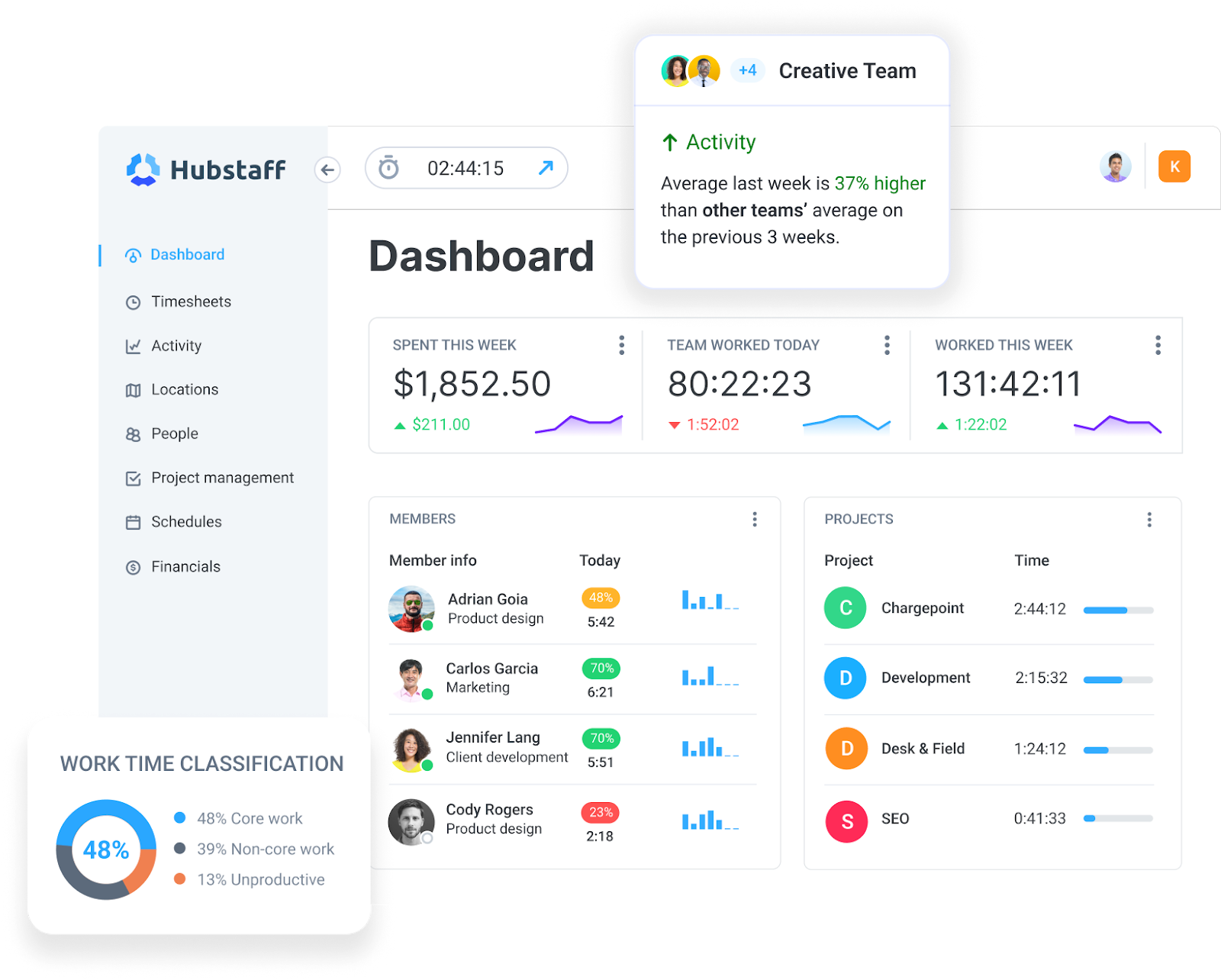
Hubstaff doesn't just look at whether you are "online"; it calculates an activity score based on several data points sampled in 10-minute windows:
1. Mouse Movements: The software tracks frequency and distance.
2. Keyboard Strokes: Hubstaff counts the volume of typing (without logging specific keys).
3. Process Monitoring: It scans for currently running applications.
4. Screenshots: Periodic captures of your desktop verify that the work matches the logged time.
---
Can Hubstaff detect an auto clicker? The short answer is a definitive yes. While a basic tool might move the cursor, Hubstaff is designed to identify patterns that deviate from human behavior.
---
Some workers attempt to stay unnoticed with physical "mouse jigglers" or USB devices.
---
Using an auto clicker is a high-stakes gamble with your career. Consequences include:Termination: Faking activity is often considered "time theft" or "fraud," which is grounds for immediate firing.
Reputational Damage: Being flagged for dishonesty can impact your ability to find future remote roles.
Legal Recovery: Companies may seek to recoup funds paid for hours that were proven to be faked.
Instead of automation, try these 2026 workflow strategies:Communicate: If a task requires deep reading with low activity, tell your manager in advance.
Take Real Breaks: It is better to stop the timer and take a 15-minute break than to fake activity.
Use Mobile Tracking: If your work takes you away from the desk (like a call), use the Hubstaff mobile app to track time legitimately.
While the temptation to "beat the system" is high, Hubstaff’s multi-layered monitoring—from process scanning to screenshot reviews—makes it highly likely you will be caught. In 2026, transparency and high-quality output remain the only safe ways to succeed in a remote environment. Focus on the work, and the metrics will take care of themselves!
If you are considering using an auto clicker or a mouse jiggler to keep your status active, it is crucial to understand how the technology works. In this 2026 guide, we will dive into Hubstaff’s detection capabilities and the professional risks involved.
---
Understanding How Hubstaff Tracks Activity
Hubstaff doesn't just look at whether you are "online"; it calculates an activity score based on several data points sampled in 10-minute windows:
1. Mouse Movements: The software tracks frequency and distance.
2. Keyboard Strokes: Hubstaff counts the volume of typing (without logging specific keys).
3. Process Monitoring: It scans for currently running applications.
4. Screenshots: Periodic captures of your desktop verify that the work matches the logged time.
---
The Short Answer: Yes, Hubstaff Can Detect Auto Clickers
Can Hubstaff detect an auto clicker? The short answer is a definitive yes. While a basic tool might move the cursor, Hubstaff is designed to identify patterns that deviate from human behavior.
1. Algorithmic Pattern Recognition
Human mouse movements are erratic—you pause to read, speed up to click a menu, and vary your rhythm. Auto clickers operate on fixed intervals. Hubstaff’s algorithms flag "perfect" patterns. If your activity remains at a constant 95% with clicks occurring every exactly 10 seconds, the system will flag it as suspicious.2. The Mouse-to-Keyboard Ratio
This is the most common way users get caught. An auto clicker only simulates mouse activity. If Hubstaff logs 100% mouse activity but 0% keyboard activity for several hours, it creates a massive red flag. Most tasks—coding, writing, or data entry—require a mix of both.3. Background Process Scanning
Hubstaff can see the names of running processes. Many popular tools have well-known process names (e.g., "AutoClicker.exe"). Even if you rename the file, advanced heuristic scanning can identify the software's behavior. If you use a mobile tool like Auto Clicker - Automatic Tap via an emulator, the emulator process itself may be flagged.4. Visual Evidence (Screenshots)
If your manager reviews screenshots and sees the same screen for three hours while the activity level is high, they will know something is wrong. An auto clicker keeps the "light green," but it doesn't produce actual work output on the screen.---
Software vs. Hardware: Does it Make a Difference?
Some workers attempt to stay unnoticed with physical "mouse jigglers" or USB devices.
Hardware Mouse Jigglers
Because these are external, they are harder to detect via process scanning. However, they still fall victim to pattern recognition. A physical device that moves the mouse in a slow circle for four hours still results in a screenshot of a static desktop and zero keyboard input.---
The Professional Risks
Using an auto clicker is a high-stakes gamble with your career. Consequences include:
How to Maintain Activity Ethically
Instead of automation, try these 2026 workflow strategies:
Conclusion
While the temptation to "beat the system" is high, Hubstaff’s multi-layered monitoring—from process scanning to screenshot reviews—makes it highly likely you will be caught. In 2026, transparency and high-quality output remain the only safe ways to succeed in a remote environment. Focus on the work, and the metrics will take care of themselves!