
Can I Run an Auto Typer and Auto Mouse Clicker Together? Maximizing Your Automation Efficiency
In the modern digital landscape, efficiency is the name of the game. Whether you are a hardcore gamer looking to optimize your grind, a data entry professional seeking to reduce repetitive strain, or a software tester verifying UI responsiveness, automation tools are invaluable. Two of the most popular tools in this category are the auto typer and the auto mouse clicker.
A common question that arises for power users is: "Can I run an auto typer and auto mouse clicker together?"
The short answer is yes. In 2026, combining these tools has become even more seamless with the rise of unified automation suites. Not only can you run them simultaneously, but syncing them can create a powerful workflow that automates complex tasks neither tool could handle alone. In this guide, we will explore how these tools interact and the best practices for setting them up in the current tech environment.
---
Before we dive into the logistics, it is essential to understand what each tool does individually.
---
Running both tools at once is technically straightforward because, on modern OS like Windows 11 or macOS, these are independent processes. However, harmony requires strategy.
Pro Tip: Use distinct hotkeys. For example, set
---
---
Solution: Ensure your clicker hits the inside of the text area to gain focus *before* the typer begins.
Solution: Always build in a "buffer" delay. In 2026 tools, you can usually set a "post-click delay" of 500ms to allow the UI to catch up.
---
1. Select Your Tools: For PC, try OP Auto Clicker paired with Free Auto Typer, or use an integrated tool like AutoClicker 2026. 2. Define the Goal: Note the exact coordinates for the click and the text needed. 3. Configure the Clicker: Set the (X, Y) coordinates and an interval (e.g., 1000ms). 4. Configure the Typer: Enter your text and set a 2-second 'startup delay' to give yourself time to switch windows. 5. Sequential Execution: It's safer to have the clicker run, then pause, then have the typer run, rather than both firing at high speed simultaneously.
Gaming: Online games with BattleEye or Easy Anti-Cheat will flag the simultaneous use of these tools as botting. Check your ToS before proceeding.
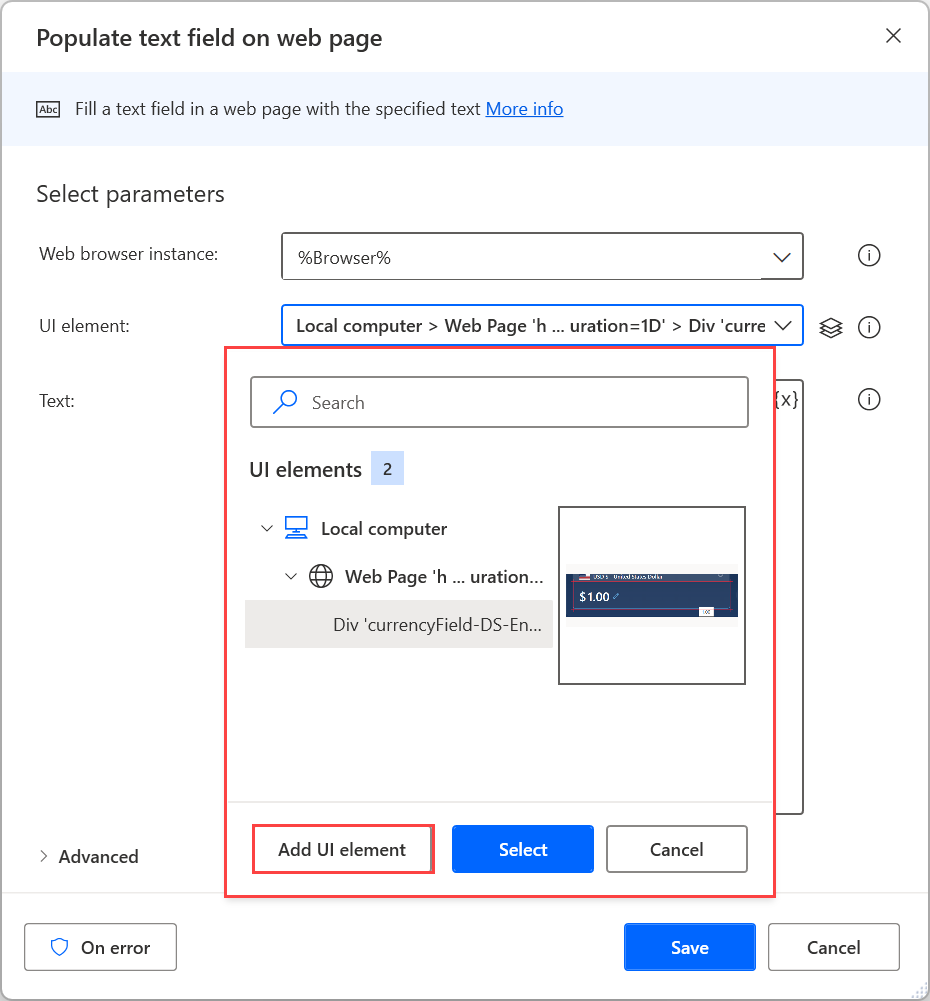
Enterprise Work: Before using Microsoft Power Automate or third-party clickers, ensure you aren't violating your company's IT security policy.
System Security: Avoid 'cracked' versions of automation software; stick to verified sources like the Windows Store, Google Play, or reputable open-source repositories.
Can you run an auto typer and auto mouse clicker together? Absolutely. By 2026 standards, the combination is a productivity force multiplier. Start small, test your sequences in a safe environment like Notepad, and let your computer handle the repetitive work while you focus on the big picture!
A common question that arises for power users is: "Can I run an auto typer and auto mouse clicker together?"
The short answer is yes. In 2026, combining these tools has become even more seamless with the rise of unified automation suites. Not only can you run them simultaneously, but syncing them can create a powerful workflow that automates complex tasks neither tool could handle alone. In this guide, we will explore how these tools interact and the best practices for setting them up in the current tech environment.
---
Understanding the Basics: Auto Typer vs. Auto Clicker
Before we dive into the logistics, it is essential to understand what each tool does individually.
What is an Auto Typer?
An auto typer is software designed to simulate keyboard input. It can "type" pre-defined strings of text into fields, chat boxes, or documents. In 2026, tools like Text Blaze have revolutionized this by allowing for dynamic templates that work across any website or app.What is an Auto Clicker?
An auto mouse clicker automates clicking. You can program it to click at specific coordinates, set frequencies, and choose between click types. Apps like Auto Clicker - Automatic Tap (on mobile) or OP Auto Clicker (on PC) are the current standard-bearers.---
How to Run Them Simultaneously in 2026
Running both tools at once is technically straightforward because, on modern OS like Windows 11 or macOS, these are independent processes. However, harmony requires strategy.
1. Managing Input Streams
Most lightweight tools use few system resources. Because they occupy different input streams—keyboard and mouse—they rarely conflict at a system level. You can simply open both, configure them, and start.2. The Conflict of Hotkeys
Synchronization fails most often due to hotkey overlap. If your clicker and typer both useF6 to start, you will trigger total chaos.
F6 for the mouse clicker and F9 for the auto typer.3. Integrated 2026 Tools: The All-in-One Solution
Newer software like AutoClicker 2026 Record Mouse/Keyboard (available on platforms like SourceForge) allows you to capture both keystrokes and clicks in a single JSON-based recording. This eliminates the need for two separate apps and ensures perfect timing.---
Common Use Cases for Combined Automation
Professional Data Entry
If you need to move data from a spreadsheet into a legacy web portal, you can set the auto clicker to hit the "New Entry" button and the auto typer to input the specific data string.Gaming & Social Support
In many 2026 idle games or platforms like TikTok Live, players need to perform repetitive actions while typing specific commands or 'support' messages. Combining these allows for sophisticated "AFK" (Away From Keyboard) presence.Software Testing (QA)
QA engineers use this combination to stress-test forms. Running a clicker to rapidly submit while a typer fills fields with random strings is the fastest way to check for validation errors.---
Potential Challenges and Solutions
Interrupting the Input Focus
If your auto clicker clicks outside a text field while the auto typer is mid-sentence, the typing will fail.Solution: Ensure your clicker hits the inside of the text area to gain focus *before* the typer begins.
Timing and Latency
Computers take time to load windows. If your auto typer sends text before a page loads, the data is lost.Solution: Always build in a "buffer" delay. In 2026 tools, you can usually set a "post-click delay" of 500ms to allow the UI to catch up.
---
Step-by-Step: Setting Up a Combined Workflow
1. Select Your Tools: For PC, try OP Auto Clicker paired with Free Auto Typer, or use an integrated tool like AutoClicker 2026. 2. Define the Goal: Note the exact coordinates for the click and the text needed. 3. Configure the Clicker: Set the (X, Y) coordinates and an interval (e.g., 1000ms). 4. Configure the Typer: Enter your text and set a 2-second 'startup delay' to give yourself time to switch windows. 5. Sequential Execution: It's safer to have the clicker run, then pause, then have the typer run, rather than both firing at high speed simultaneously.
Safety, Ethics, and Best Practices
Conclusion
Can you run an auto typer and auto mouse clicker together? Absolutely. By 2026 standards, the combination is a productivity force multiplier. Start small, test your sequences in a safe environment like Notepad, and let your computer handle the repetitive work while you focus on the big picture!