
Can GS Auto Clicker Work in Windows 10? The Ultimate Guide to Setup and Usage
In the world of digital productivity and competitive gaming, repetitive tasks are the biggest hurdle to efficiency. Whether you are clicking through spreadsheets, testing software, or trying to gain an edge in a click-heavy game like Cookie Clicker or Minecraft, manual clicking is exhausting.
One of the most popular tools in this niche is GS Auto Clicker. However, because this software has been around for quite some time, many modern users ask: Can GS Auto Clicker work in Windows 10?
The short answer is a resounding yes. In this 2026 guide, we will explore how to set up GS Auto Clicker on Windows 10, optimize its settings, and troubleshoot common issues to ensure seamless automation.
---
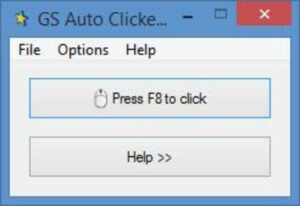
GS Auto Clicker is a lightweight, free-to-use utility designed to automate mouse clicks. Developed by GoldenSoft, it allows users to simulate single or double clicks at specific intervals without touching their mouse.
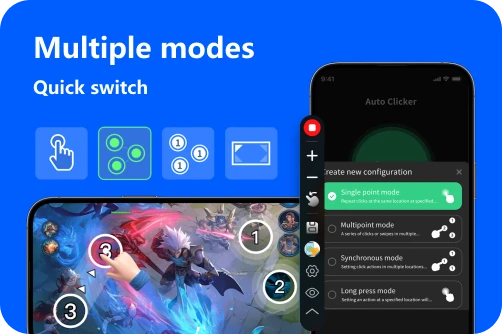
Despite its simplistic interface—which looks like a relic from the Windows XP era—its core engine is robust enough for modern systems. Windows 10 maintains excellent backward compatibility with legacy software like GS Auto Clicker. While it’s a classic, many mobile users in 2026 prefer the modern UI and cross-platform flexibility of apps like Auto Clicker - Automatic Tap, but for Windows enthusiasts, GS remains a staple.
Setting up the software on Windows 10 is straightforward. Follow these steps to get started:
1. Right-click the GS Auto Clicker shortcut and select Properties.
2. Navigate to the Compatibility tab.
3. Check "Run this program as an administrator."
4. Click Apply and OK.
---
---
1. Right-click the app > Properties > Compatibility.
2. Click Change high DPI settings.
3. Check Override high DPI scaling behavior and set it to "Application."
GS Auto Clicker works perfectly on Windows 10. Despite its age, its simplicity is its strength. It remains one of the most resource-efficient tools for mouse automation available today. However, if you are looking for a more modern experience with cloud-synced scripts and a 2026-ready interface, you might also consider Auto Clicker - Automatic Tap for your mobile or emulated needs.
Whether you are automating a boring work task or dominating an idle game, GS Auto Clicker on Windows 10 is a reliable choice. Download it, follow our setup, and let your PC do the heavy lifting!
One of the most popular tools in this niche is GS Auto Clicker. However, because this software has been around for quite some time, many modern users ask: Can GS Auto Clicker work in Windows 10?
The short answer is a resounding yes. In this 2026 guide, we will explore how to set up GS Auto Clicker on Windows 10, optimize its settings, and troubleshoot common issues to ensure seamless automation.
---
Understanding GS Auto Clicker
GS Auto Clicker is a lightweight, free-to-use utility designed to automate mouse clicks. Developed by GoldenSoft, it allows users to simulate single or double clicks at specific intervals without touching their mouse.
Despite its simplistic interface—which looks like a relic from the Windows XP era—its core engine is robust enough for modern systems. Windows 10 maintains excellent backward compatibility with legacy software like GS Auto Clicker. While it’s a classic, many mobile users in 2026 prefer the modern UI and cross-platform flexibility of apps like Auto Clicker - Automatic Tap, but for Windows enthusiasts, GS remains a staple.
How to Install GS Auto Clicker on Windows 10
Setting up the software on Windows 10 is straightforward. Follow these steps to get started:
Step 1: Download and SmartScreen
Ensure you download from a reputable source. If Windows 10 flags the application via Windows SmartScreen, click "More Info" and then "Run anyway." This occurs because the software's digital certificate is older than modern Windows standards.Step 2: Granting Administrative Privileges
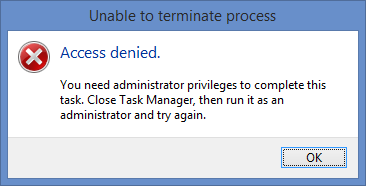
For the clicker to function across all windows and games, it needs high-level permissions:1. Right-click the GS Auto Clicker shortcut and select Properties.
2. Navigate to the Compatibility tab.
3. Check "Run this program as an administrator."
4. Click Apply and OK.
---
Configuring for Maximum Efficiency
Setting the Click Interval
Go to Options > Clicking > Repeat. Here, you can define how many times the software should click or if it should continue until stopped. You can set the interval from hours down to milliseconds. Pro Tip: Setting it below 10ms may cause lag in some Windows 10 applications.Recording Sequences (Multi-Point)
One of the best features is the Record & Replay function. Under Options > Recording, you can record a sequence of clicks at different points on your screen. When you hit play, GS Auto Clicker will mimic that exact pattern—ideal for complex tasks that go beyond clicking in one spot.---
Troubleshooting Windows 10 Issues
1. The "Clicker Won't Click" Fix
If the software is running but no clicks register, it’s usually a permission conflict. Windows 10 prevents lower-level apps from interacting with "Administrative" windows. Always run GS as an administrator to bypass this security layer.2. High DPI Scaling Problems
On 4K monitors, Windows 10 might scale the UI, causing the clicker to miss its target.1. Right-click the app > Properties > Compatibility.
2. Click Change high DPI settings.
3. Check Override high DPI scaling behavior and set it to "Application."
3. Full-Screen Game Conflicts
Some games ignore simulated inputs in exclusive full-screen mode. To fix this, switch your game to Windowed or Borderless Windowed mode. This allows the Windows desktop input layer to interact correctly with the game engine.Conclusion: The Verdict
GS Auto Clicker works perfectly on Windows 10. Despite its age, its simplicity is its strength. It remains one of the most resource-efficient tools for mouse automation available today. However, if you are looking for a more modern experience with cloud-synced scripts and a 2026-ready interface, you might also consider Auto Clicker - Automatic Tap for your mobile or emulated needs.
Whether you are automating a boring work task or dominating an idle game, GS Auto Clicker on Windows 10 is a reliable choice. Download it, follow our setup, and let your PC do the heavy lifting!