
Can I Set Up an Auto Clicker for Controller? A Comprehensive Guide to Gaming Automation
In the world of gaming, efficiency is often the difference between success and hours of tedious grinding. Whether you are farming resources in an RPG, maintaining a high fire rate in a shooter, or automating repetitive tasks, the question inevitably arises: Can I set up an auto clicker for a controller?
The short answer is yes. In 2026, the methods for controller automation have become more streamlined, allowing players to bridge the gap between console comfort and PC-level efficiency. In this guide, we will explore the latest software solutions, hardware workarounds, and how tools like Auto Clicker - Automatic Tap are changing the landscape for cross-platform play.
---
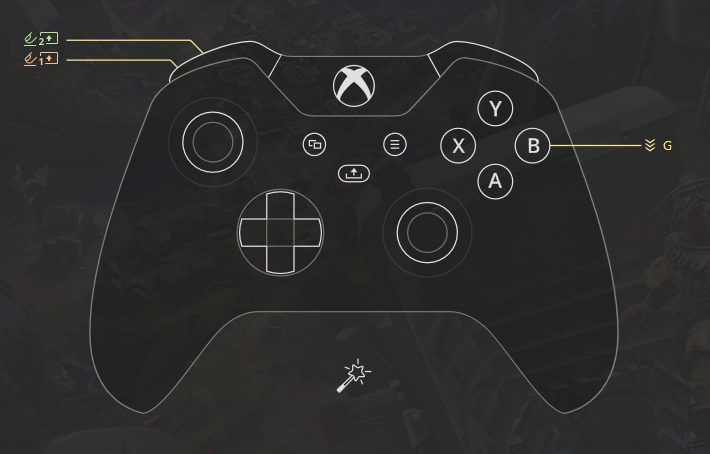
Most gamers are familiar with mouse-based auto clickers, but controllers (like the Xbox Wireless Controller or DualSense) use different input protocols. Setting up an auto clicker for these devices requires a translation layer—telling your system that a single button press should behave like a continuous stream of inputs.
Automation helps reduce physical strain, preventing repetitive strain injuries during long sessions, and allows you to progress through "clicker" games or grind-heavy mechanics without wearing out your controller’s physical buttons.
---
PC gamers have the most flexibility because Windows 11/12 treats controllers as input devices that can be intercepted by software.
Open Steam and enter Big Picture Mode.
Navigate to your game and select Manage Game > Controller Configuration.
Select the button you want to automate (e.g., 'A' or Right Trigger).
In the settings, enable Turbo and set the Repeat Rate to your desired speed.
---
Native console environments are closed systems, making software-based auto clickers difficult. However, there are two primary 2026 workarounds:
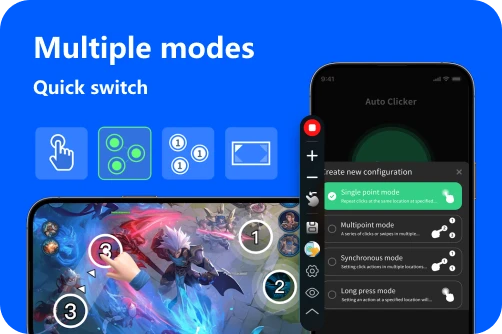
[Image showing a smartphone screen running a cloud game with Auto Clicker - Automatic Tap targets placed over the 'Attack' button]
---
If you are using software on PC or an emulator, follow this workflow: 1. Identify the Goal: Choose between Turbo (clicks while held) or Toggle (clicks until pressed again). 2. Download the Software: Use a tool like reWASD or the Auto Clicker - Automatic Tap app for touch-based interfaces. 3. Map the Button: Select the trigger or face button you wish to automate. 4. Configure the Interval: A standard rapid-fire rate is usually between 50ms and 100ms. 5. Test Safely: Always test your setup in a single-player environment first to ensure it doesn't cause menu glitches.
Game Bans: Most online multiplayer games (like Call of Duty or Fortnite) consider macros to be a form of cheating. Anti-cheat systems may detect perfectly timed intervals. Tip: Always use the 'Randomize' feature in your software to add human-like timing variances.
Hardware Wear: While it saves your fingers, extremely high-frequency software signals can occasionally cause input lag. Keep your click rates within reasonable limits.
Setting up an auto clicker for a controller is entirely possible and can be a life-saver for repetitive tasks. Whether you use Steam Input on PC, Auto Clicker - Automatic Tap for mobile/cloud sessions, or hardware like Cronus Zen on consoles, the right setup will turn your controller into a high-efficiency tool. Elevate your gaming experience in 2026 by letting automation handle the grind while you focus on the fun!
The short answer is yes. In 2026, the methods for controller automation have become more streamlined, allowing players to bridge the gap between console comfort and PC-level efficiency. In this guide, we will explore the latest software solutions, hardware workarounds, and how tools like Auto Clicker - Automatic Tap are changing the landscape for cross-platform play.
---
Understanding the Need for Controller Auto Clickers
Most gamers are familiar with mouse-based auto clickers, but controllers (like the Xbox Wireless Controller or DualSense) use different input protocols. Setting up an auto clicker for these devices requires a translation layer—telling your system that a single button press should behave like a continuous stream of inputs.
Automation helps reduce physical strain, preventing repetitive strain injuries during long sessions, and allows you to progress through "clicker" games or grind-heavy mechanics without wearing out your controller’s physical buttons.
---
How to Set Up an Auto Clicker for Controller on PC
PC gamers have the most flexibility because Windows 11/12 treats controllers as input devices that can be intercepted by software.
1. Using Steam Input (The Free Method)
If you play through Steam, you already have a powerful auto clicker built-in. Steam Input allows you to remap almost any button to include a "Turbo" function.2. reWASD: The Professional Choice
For those seeking the industry standard, reWASD allows you to turn your controller into a virtual keyboard/mouse. You can set a "Toggle" mode—press a button once to start the clicking and again to stop—allowing for true hands-free automation in 2026's most popular simulators.---
Setting Up an Auto Clicker for Consoles (Xbox, PS5, Switch)
Native console environments are closed systems, making software-based auto clickers difficult. However, there are two primary 2026 workarounds:
1. Hardware Adapters (Cronus Zen / Titan Two)
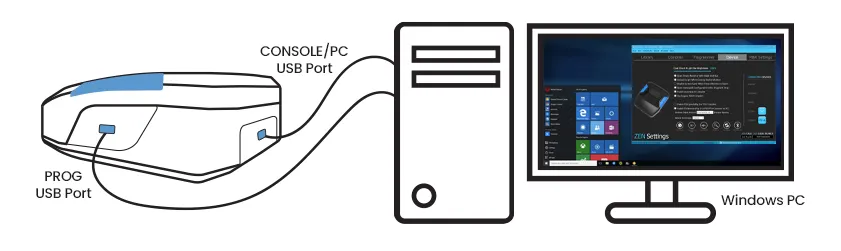
Devices like the Cronus Zen act as a bridge. You plug your controller into the device, which then connects to the console. You can load scripts that handle rapid fire and automated loops. Note: Always ensure your firmware is updated to comply with the latest 2026 console security patches.2. Cross-Platform Automation via Mobile
For games that support cross-progression or cloud gaming, many players use Auto Clicker - Automatic Tap on their mobile devices. By streaming the game to a phone, you can place a 'Tap' target over the digital button overlay. This allows you to automate clicks on your console account without needing to modify your expensive physical controller.[Image showing a smartphone screen running a cloud game with Auto Clicker - Automatic Tap targets placed over the 'Attack' button]
---
Step-by-Step: Setting Up a Controller Macro
If you are using software on PC or an emulator, follow this workflow: 1. Identify the Goal: Choose between Turbo (clicks while held) or Toggle (clicks until pressed again). 2. Download the Software: Use a tool like reWASD or the Auto Clicker - Automatic Tap app for touch-based interfaces. 3. Map the Button: Select the trigger or face button you wish to automate. 4. Configure the Interval: A standard rapid-fire rate is usually between 50ms and 100ms. 5. Test Safely: Always test your setup in a single-player environment first to ensure it doesn't cause menu glitches.
Risks and Ethical Considerations
Conclusion
Setting up an auto clicker for a controller is entirely possible and can be a life-saver for repetitive tasks. Whether you use Steam Input on PC, Auto Clicker - Automatic Tap for mobile/cloud sessions, or hardware like Cronus Zen on consoles, the right setup will turn your controller into a high-efficiency tool. Elevate your gaming experience in 2026 by letting automation handle the grind while you focus on the fun!