
Why You Can’t Use an Auto Clicker in Time Clickers: Troubleshooting and Solutions
For fans of the idle gaming genre, Time Clickers represents the pinnacle of satisfying progression. The game revolves around clicking 'Time Cubes' to earn gold, which allows you to upgrade your turrets and pistols. However, as any veteran player knows, clicking thousands of times per minute leads to fatigue.
Many players turn to software to handle the heavy lifting. But what happens when you find that you can't use auto clicker time clickers effectively? You set up your software, hit start, and... nothing happens. The cubes remain intact, and your progress stalls.
In this 2026 update, we explore the technical reasons why your auto clicker might be failing and provide the exact steps to get your automation back on track.
---
The most frequent reason users find they can't use auto clicker tools is a lack of administrative permissions. Windows has a security feature called User Account Control (UAC). If Time Clickers (or the Steam client) is running with Administrator privileges, but your auto clicker is running as a standard user, Windows will block the clicks from reaching the game window.
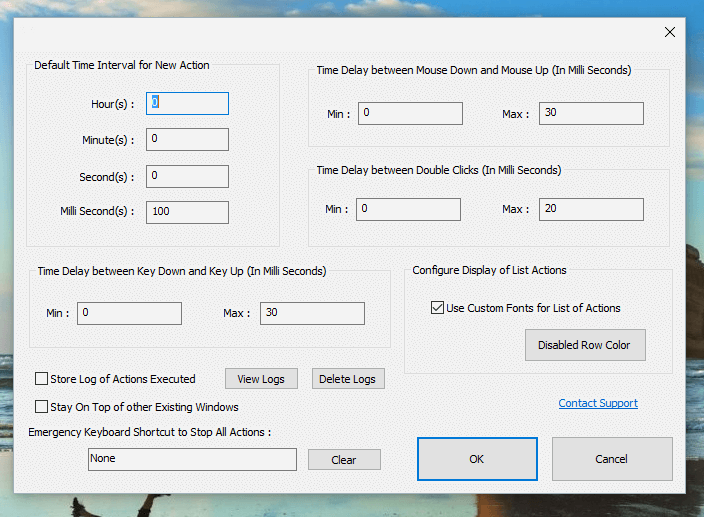
The Fix: Right-click your auto clicker executable and select 'Run as Administrator.' This creates the necessary bridge for the software to communicate with the game engine.
---
Many automation tools struggle with games running in 'Exclusive Fullscreen' mode. In this state, the game takes total control of input handling, often bypassing the standard Windows message queue that auto clickers rely on.
The Fix: Switch Time Clickers to 'Windowed' or 'Borderless Window' mode. This allows the OS to manage the cursor effectively, ensuring simulated clicks land on the correct pixels.
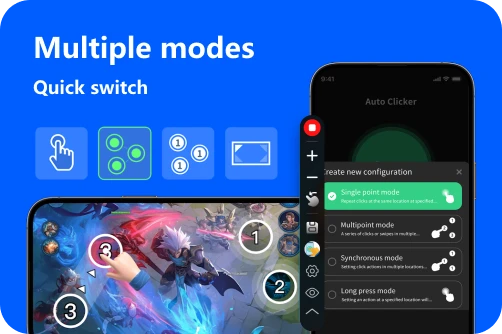
[Image showing Time Clickers Video Settings menu with Windowed Mode highlighted]
---
In 2026, many game engines have refined their 'spam' filters. Setting your auto clicker to 1 millisecond (1,000 clicks per second) is often counterproductive. If you send 1,000 clicks per second but the game only refreshes at 60 FPS, the Unity engine may become overwhelmed and discard the input.
The Fix: Slow it down. Try setting your interval to 20ms or 50ms (20-50 clicks per second). This is the 'sweet spot' for Time Clickers, ensuring every click registers without lagging the UI or triggering internal rate limits.
---
If your clicker is 'firing' but missing the cubes, it’s likely a coordinate mismatch. If you use a 4K monitor with Windows display scaling (e.g., 150%), the software might be aiming at the wrong coordinates.
The Fix: Set Windows display scaling to 100% or right-click your clicker's .exe > Properties > Compatibility > Change high DPI settings > check 'Override high DPI scaling behavior.'
---
If generic tools fail, consider these updated options known for reliability in the current OS environment:Auto Clicker - Automatic Tap: Excellent for mobile-to-PC emulators with built-in randomization to avoid 'perfect rhythm' detection.
OP Auto Clicker 3.0: Still the gold standard for lightweight, non-invasive clicking.
Forge Auto Clicker: Offers advanced stability for high-speed tasks on Windows 11 and beyond.
Finding that you can't use auto clicker time clickers is usually a matter of configuration, not a permanent block. By running as an administrator, switching to windowed mode, and adding a slight (5-10ms) randomization to your clicks, you can bypass most technical hurdles. Automation is a key part of idle game strategy—fine-tune your setup today and let the Time Cubes crumble!
Many players turn to software to handle the heavy lifting. But what happens when you find that you can't use auto clicker time clickers effectively? You set up your software, hit start, and... nothing happens. The cubes remain intact, and your progress stalls.
In this 2026 update, we explore the technical reasons why your auto clicker might be failing and provide the exact steps to get your automation back on track.
---
1. Administrative Privileges: The #1 Fix
The most frequent reason users find they can't use auto clicker tools is a lack of administrative permissions. Windows has a security feature called User Account Control (UAC). If Time Clickers (or the Steam client) is running with Administrator privileges, but your auto clicker is running as a standard user, Windows will block the clicks from reaching the game window.
The Fix: Right-click your auto clicker executable and select 'Run as Administrator.' This creates the necessary bridge for the software to communicate with the game engine.
---
2. Screen Mode and Focus Issues
Many automation tools struggle with games running in 'Exclusive Fullscreen' mode. In this state, the game takes total control of input handling, often bypassing the standard Windows message queue that auto clickers rely on.
The Fix: Switch Time Clickers to 'Windowed' or 'Borderless Window' mode. This allows the OS to manage the cursor effectively, ensuring simulated clicks land on the correct pixels.
[Image showing Time Clickers Video Settings menu with Windowed Mode highlighted]
---
3. The 'Click Rate' Trap
In 2026, many game engines have refined their 'spam' filters. Setting your auto clicker to 1 millisecond (1,000 clicks per second) is often counterproductive. If you send 1,000 clicks per second but the game only refreshes at 60 FPS, the Unity engine may become overwhelmed and discard the input.
The Fix: Slow it down. Try setting your interval to 20ms or 50ms (20-50 clicks per second). This is the 'sweet spot' for Time Clickers, ensuring every click registers without lagging the UI or triggering internal rate limits.
---
4. High-DPI and Display Scaling
If your clicker is 'firing' but missing the cubes, it’s likely a coordinate mismatch. If you use a 4K monitor with Windows display scaling (e.g., 150%), the software might be aiming at the wrong coordinates.
The Fix: Set Windows display scaling to 100% or right-click your clicker's .exe > Properties > Compatibility > Change high DPI settings > check 'Override high DPI scaling behavior.'
---
5. 2026 Recommended Tools for Idle Games
If generic tools fail, consider these updated options known for reliability in the current OS environment:
Conclusion
Finding that you can't use auto clicker time clickers is usually a matter of configuration, not a permanent block. By running as an administrator, switching to windowed mode, and adding a slight (5-10ms) randomization to your clicks, you can bypass most technical hurdles. Automation is a key part of idle game strategy—fine-tune your setup today and let the Time Cubes crumble!