
Can Auto Keyboard Click for You? The Ultimate Guide to Keyboard Automation
In the modern digital age, efficiency is the name of the game. Whether you are a professional navigating complex spreadsheets, a developer testing software, or a gamer looking to optimize your performance, the question often arises: Can auto keyboard click for you?
The short answer is a resounding yes. Automation technology has evolved significantly in 2026, moving beyond simple mouse clickers to sophisticated keyboard automation tools that can simulate complex sequences of keystrokes. In this comprehensive guide, we will explore what auto keyboard clickers are, how they work, and how you can implement them to save hundreds of hours of manual labor.
---
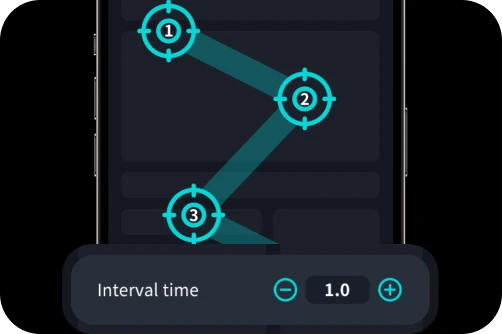
When people ask if a keyboard can "click" for them, they are usually referring to two distinct types of automation: simulated mouse clicks triggered by keyboard shortcuts, or automated keystrokes that mimic a human typing or pressing function keys.
An auto keyboard clicker (often called a keyboard macro recorder) is software designed to record, edit, and play back keyboard inputs. Unlike a standard mouse clicker that only targets a specific coordinate, a keyboard tool interacts directly with the input buffer of your operating system. It can "press" the Spacebar, Enter, Alt, Tab, or any alphanumeric key at specified intervals.

Automation tools work by sending virtual input signals to your computer's OS. To the computer, these signals are indistinguishable from a physical key being pressed on a hardware keyboard.
---
---
1. Prevention of Repetitive Strain Injury (RSI): Manual clicking for hours can lead to carpal tunnel. Automation protects your physical health by reducing the toll on your hands. 2. Unmatched Consistency: Software doesn't get tired. If you need a key pressed every 1.5 seconds for four hours, it will perform with 100% precision. 3. Time Reallocation: By automating the mundane, you free up brainpower for creative tasks that actually require human intelligence.
1. Choose Your Tool: For beginners, a GUI tool like Auto Clicker - Automatic Tap is best. For pros, AutoHotkey offers more power. 2. Define the Action: Decide which key needs to be pressed. Most tools have a field labeled "Key to Press." 3. Set the Interval: Choose between milliseconds, seconds, or minutes. 4. Choose a Start/Stop Hotkey: This is crucial for stopping instantly. Most use
In Gaming: Many multiplayer games consider auto clickers cheating. Always check the Terms of Service (ToS) before using automation to avoid a ban.
In the Workplace: Ensure automation aligns with company policy. Some IT departments may flag unapproved software as a security risk.
Security: Only download from reputable sources. Because these tools "hook" into your keyboard, malicious versions could act as keyloggers.
If you find yourself performing the same keystrokes over and over, the answer to "can auto keyboard click for you" is a definitive yes. From streamlining professional workflows to avoiding physical strain, the benefits are undeniable. Start small with a simple interval clicker, and as you grow more comfortable, explore complex macros to truly master your digital environment.
The short answer is a resounding yes. Automation technology has evolved significantly in 2026, moving beyond simple mouse clickers to sophisticated keyboard automation tools that can simulate complex sequences of keystrokes. In this comprehensive guide, we will explore what auto keyboard clickers are, how they work, and how you can implement them to save hundreds of hours of manual labor.
---
What Exactly is an Auto Keyboard Clicker?
When people ask if a keyboard can "click" for them, they are usually referring to two distinct types of automation: simulated mouse clicks triggered by keyboard shortcuts, or automated keystrokes that mimic a human typing or pressing function keys.
An auto keyboard clicker (often called a keyboard macro recorder) is software designed to record, edit, and play back keyboard inputs. Unlike a standard mouse clicker that only targets a specific coordinate, a keyboard tool interacts directly with the input buffer of your operating system. It can "press" the Spacebar, Enter, Alt, Tab, or any alphanumeric key at specified intervals.
How It Works: The Mechanics of Automation
Automation tools work by sending virtual input signals to your computer's OS. To the computer, these signals are indistinguishable from a physical key being pressed on a hardware keyboard.
1. Script-Based Automation
Tools like AutoHotkey allow users to write simple scripts. For example: "Every 5 seconds, press 'F5' to refresh the browser."2. Record and Playback
For those who aren't comfortable with coding, many tools offer a "record" feature. You perform an action once manually—like typing a long email signature—and the software records the exact timing and sequence. You can then loop this indefinitely.3. Interval-Based Triggering
This is the most common form. You set a specific key (e.g., 'E') and an interval (e.g., 100 milliseconds). The software will then "click" or tap that key for you until you tell it to stop.---
Top Use Cases: Why You Need Keyboard Automation
Enhancing Productivity in Data Entry
Data entry is notoriously repetitive. If you find yourself constantly pressingCtrl + C, Alt + Tab, and Ctrl + V, an auto keyboard tool can handle these sequences. By automating the transition between apps, you reduce manual errors and speed up your workflow.Software Testing and Development
Developers use "stress tests" to see if a UI crashes by spamming a specific key. An auto keyboard clicker can perform these tests overnight, providing valuable data without requiring a human to sit at the desk.Gaming Performance
In the gaming world, "can auto keyboard click for you" is a frequent question for RPG and MMO players. Many games require repetitive actions, like "farming" resources or using an ability the moment its cooldown expires. Macros allow gamers to perform complex combos with a single keystroke.---
The Benefits of Using Keyboard Automation
1. Prevention of Repetitive Strain Injury (RSI): Manual clicking for hours can lead to carpal tunnel. Automation protects your physical health by reducing the toll on your hands. 2. Unmatched Consistency: Software doesn't get tired. If you need a key pressed every 1.5 seconds for four hours, it will perform with 100% precision. 3. Time Reallocation: By automating the mundane, you free up brainpower for creative tasks that actually require human intelligence.
Step-by-Step Guide: Setting Up an Auto Keyboard Clicker
1. Choose Your Tool: For beginners, a GUI tool like Auto Clicker - Automatic Tap is best. For pros, AutoHotkey offers more power. 2. Define the Action: Decide which key needs to be pressed. Most tools have a field labeled "Key to Press." 3. Set the Interval: Choose between milliseconds, seconds, or minutes. 4. Choose a Start/Stop Hotkey: This is crucial for stopping instantly. Most use
F6 or F10 to toggle the automation.
5. Test in Notepad: Before using it in a live spreadsheet, open a blank Notepad file to ensure the keys are being "clicked" at the right speed.Safety, Ethics, and Best Practices
Conclusion: Is Keyboard Automation Right for You?
If you find yourself performing the same keystrokes over and over, the answer to "can auto keyboard click for you" is a definitive yes. From streamlining professional workflows to avoiding physical strain, the benefits are undeniable. Start small with a simple interval clicker, and as you grow more comfortable, explore complex macros to truly master your digital environment.