
Can the Logitech G502 Do Auto-Clicking? A Complete Setup Guide for US Gamers
The Logitech G502 series—spanning the Proteus Spectrum, the Hero, and the wireless Lightspeed—is widely considered one of the most iconic gaming mice ever created. Its ergonomic design, plethora of programmable buttons, and industry-leading sensor make it a favorite for both competitive gamers and power users. However, one question frequently surfaces among the community: Can the Logitech G502 do auto-clicking?
The short answer is yes. In 2026, the G502 series remains a powerhouse for automation. While the mouse doesn’t have a physical 'auto-click' toggle, Logitech’s robust software ecosystem allows you to program this functionality with precision. In this guide, we’ll dive into how you can transform your G502 into an automation powerhouse using the latest **Logitech G HUB** workflows, the benefits of doing so, and the critical risks you need to keep in mind.
---
Before we jump into the 'how-to,' it is important to understand why the G502 is particularly suited for auto-clicking. Unlike budget mice that rely on third-party software which might be flagged as malware, the G502 utilizes official, first-party software that communicates directly with the mouse’s firmware.
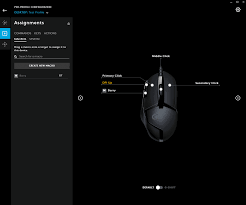
The G502 features **11 programmable buttons**. This abundance of real estate means you can assign an auto-clicker macro to a secondary button (like the 'G5' thumb button or the DPI shift button) without sacrificing your primary left or right-click functions. In 2026, the new **G502 X** models with **LIGHTFORCE** hybrid optical-mechanical switches offer even faster response times for these macros.
---
Setting up an auto-clicker involves creating a 'Macro.' A macro is a sequence of commands triggered by a single button press. Follow these 2026-updated steps:
Repeat While Holding: The mouse clicks as long as you keep the button pressed.
Toggle: You click once to start and click again to stop (great for AFK tasks).
2. Perform a single left click. Then stop recording.
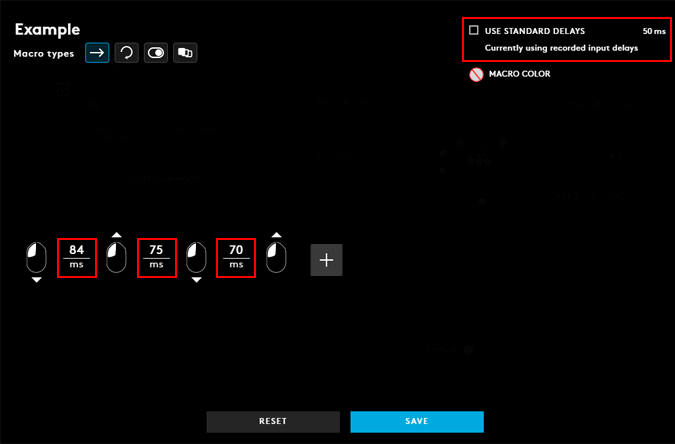
3. **Crucial Step:** Uncheck the 'Use Standard Delays' box.
4. Set your delay. For high-speed clicking, 10ms to 25ms is ideal.
[Image showing the Logitech G HUB macro recording screen with 'Use Standard Delays' unchecked and custom delay set to 20ms]
---
When setting up your Logitech G502 auto-clicker, the 'Delay' setting is crucial for stability:Incremental Games (Cookie Clicker, etc.): A delay of **10ms to 25ms** offers maximum efficiency without lagging the application.
Minecraft (Fast-Bridging/Farming): A delay of **25ms to 50ms** is generally safe and responsive.
First-Person Shooters (Semiauto Weapons): A delay of **50ms to 100ms** mimics a very fast human trigger finger, which is less likely to trigger automated anti-recoil detection.
---
---
While the Logitech G502 makes auto-clicking easy, you must discuss the ethical and technical risks:Online Multiplayer Bans: Competitive games like Valorant, Call of Duty, and Apex Legends use sophisticated anti-cheat systems (like Ricochet or Vanguard). These look for perfectly consistent click intervals. If you use a macro with a fixed 10ms delay, the anti-cheat may flag you for 'scripting,' leading to a permanent account ban.
A 2026 Solution: Randomization: If possible, add subtle randomization to your delays. Many gamers in 2026 pair G HUB with mobile tools like Auto Clicker - Automatic Tap for cross-platform games, as these mobile tools often include a mandatory Randomize feature to prevent behavioral detection.
---
One of the best features of the G502 series is Onboard Memory.If you save your macro to the mouse’s Onboard Memory, you can close G HUB or even move the mouse to a different computer (like an Xbox or PS5, if supported by the game), and the auto-clicker will still work.
If saved as a Software Profile, G HUB must be running in the background for the macro to function.
The Logitech G502 is a highly customizable tool that can significantly enhance your gaming and professional experience. By leveraging the official power of **Logitech G HUB**, you can easily set up a precise auto-clicker macro.
Just remember to use these tools responsibly—especially in online multiplayer settings—to ensure your gaming remains both fun and fair. Whether you’re trying to dominate an idle game or streamline a repetitive data task, the G502’s macro system is one of the best in the business. Happy clicking!
The short answer is yes. In 2026, the G502 series remains a powerhouse for automation. While the mouse doesn’t have a physical 'auto-click' toggle, Logitech’s robust software ecosystem allows you to program this functionality with precision. In this guide, we’ll dive into how you can transform your G502 into an automation powerhouse using the latest **Logitech G HUB** workflows, the benefits of doing so, and the critical risks you need to keep in mind.
---
Understanding the Logitech G502 Capabilities
Before we jump into the 'how-to,' it is important to understand why the G502 is particularly suited for auto-clicking. Unlike budget mice that rely on third-party software which might be flagged as malware, the G502 utilizes official, first-party software that communicates directly with the mouse’s firmware.
The G502 features **11 programmable buttons**. This abundance of real estate means you can assign an auto-clicker macro to a secondary button (like the 'G5' thumb button or the DPI shift button) without sacrificing your primary left or right-click functions. In 2026, the new **G502 X** models with **LIGHTFORCE** hybrid optical-mechanical switches offer even faster response times for these macros.
---
How to Set Up an Auto-Clicker on Logitech G502 (2026 G HUB Guide)
Setting up an auto-clicker involves creating a 'Macro.' A macro is a sequence of commands triggered by a single button press. Follow these 2026-updated steps:
Step 1: Install or Update Logitech G HUB
Ensure you have the latest version of Logitech G HUB. As of 2026, G HUB has streamlined its macro engine for better compatibility with Windows 12.Step 2: Access the Macros Tab
Open G HUB and click on your G502 mouse on the home screen. On the left-hand sidebar, click the **Assignments** icon (the plus sign inside a square) and then select **Macros**.Step 3: Create a New Macro
1. Click Create New Macro. 2. Give it a clear name (e.g., 'G502 Auto Clicker'). 3. Select the Repeat Type:Step 4: Record and Configure the Clicks
1. Select Start Now > Record Keystrokes.2. Perform a single left click. Then stop recording.
3. **Crucial Step:** Uncheck the 'Use Standard Delays' box.
4. Set your delay. For high-speed clicking, 10ms to 25ms is ideal.
[Image showing the Logitech G HUB macro recording screen with 'Use Standard Delays' unchecked and custom delay set to 20ms]
Step 5: Assign the Macro
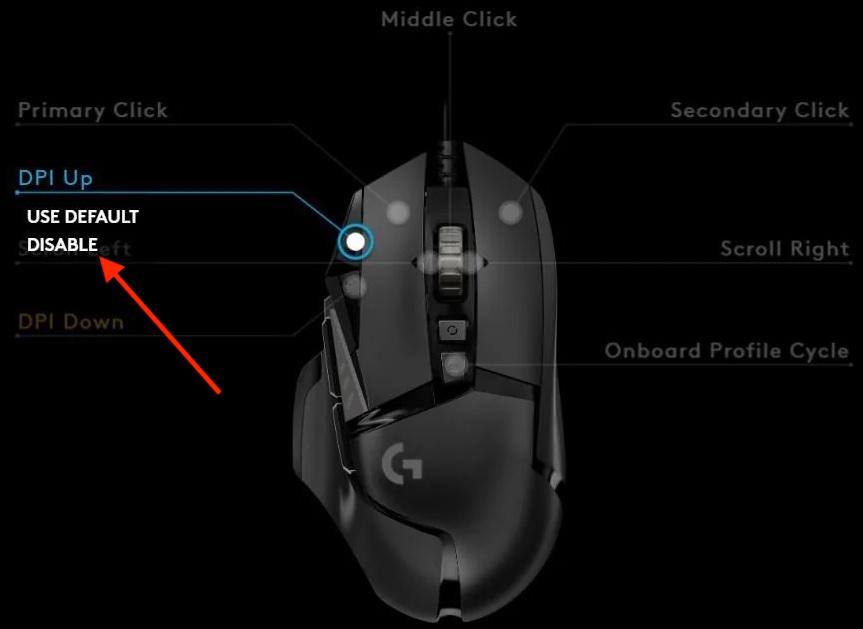
Save the macro. It will now appear in your list. Simply click and drag the 'G502 Auto Clicker' macro onto the desired button on the 3D model of the mouse (DPI-up or DPI-down buttons are popular choices).---
Optimizing Performance: Finding the Sweet Spot
When setting up your Logitech G502 auto-clicker, the 'Delay' setting is crucial for stability:
---
Why Use an Auto-Clicker? Common Use Cases
Gaming Productivity
In many 'clicker' or 'idle' games, progression is tied directly to clicks per second. The G502’s macro system handles this work for you, saving you from physical strain and Repetitive Strain Injury (RSI).Professional Workflows
The G502 is a productivity beast. If you work in data entry or software testing where you need to click the same 'Refresh' or 'Submit' button repeatedly, a macro can save you significant time and effort.---
The Risks: Anti-Cheat and Fair Play
While the Logitech G502 makes auto-clicking easy, you must discuss the ethical and technical risks:
---
Hardware Profiles vs. Onboard Memory
One of the best features of the G502 series is Onboard Memory.
Conclusion
The Logitech G502 is a highly customizable tool that can significantly enhance your gaming and professional experience. By leveraging the official power of **Logitech G HUB**, you can easily set up a precise auto-clicker macro.
Just remember to use these tools responsibly—especially in online multiplayer settings—to ensure your gaming remains both fun and fair. Whether you’re trying to dominate an idle game or streamline a repetitive data task, the G502’s macro system is one of the best in the business. Happy clicking!