
Fixing the Frustration: What to Do When You Can’t Click Auto Cast
In the world of digital productivity and gaming, automation is king. Whether you are trying to streamline data entry or looking to optimize performance in a complex simulation, auto-casting features are essential. However, many users in 2026 run into a common problem: the software refuses to engage. If you find that you can't click auto cast or your tool seems to be clicking into a void, you aren't alone.
This issue can stem from Windows 12 permission conflicts to complex anti-cheat interference. In this guide, we will provide a step-by-step roadmap to getting your automation back on track.
---
In automation software, an 'auto-cast' feature allows the program to automatically trigger a specific action based on a timer or an on-screen trigger. When this fails, it usually manifests in two ways: the button is visually 'unclickable,' or the software thinks it is clicking, but the target application ignores the input.
---
1. Administrative Privilege Mismatch: The #1 cause. If the target app runs as Administrator and your auto-clicker doesn't, Windows blocks the communication for security.
2. User Interface (UI) Overlays: Discord, Steam, or NVIDIA overlays can 'steal' the focus of an auto-clicker.
3. Display Scaling (DPI) Offsets: If your display is scaled to 150%, the coordinates your auto-caster targets may be physically offset from the actual button.
4. Hyperion or Anti-Cheat Interference: Modern apps in 2026 have built-in detection for rapid, perfectly timed clicks, which can lead to inputs being discarded.
---
Windows protects high-privilege apps from low-privilege scripts.Close your automation tool completely.
Right-click the icon and select 'Run as Administrator.'
Ensure the target application is also running with the same privilege level.
Sometimes, an invisible 'layer' sits on top of your screen, absorbing clicks.Disable Discord Overlay (User Settings > Game Overlay).
Disable Steam/EA Overlay.
Close background utility apps like AdsPower or fingerprint browsers that may be managing screen focus.
If your cursor moves to the wrong spot, it’s a coordinate mismatch.Right-click desktop > Display Settings.
Set Scale to 100%.
If you need scaling, go to your tool's .exe properties > Compatibility > Change high DPI settings > check 'Override high DPI scaling behavior.'
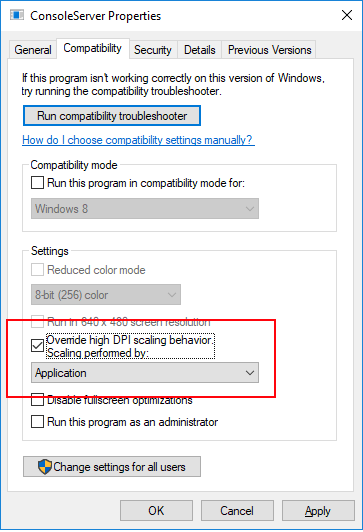
[Image showing Windows Compatibility tab with High DPI override settings highlighted]
---
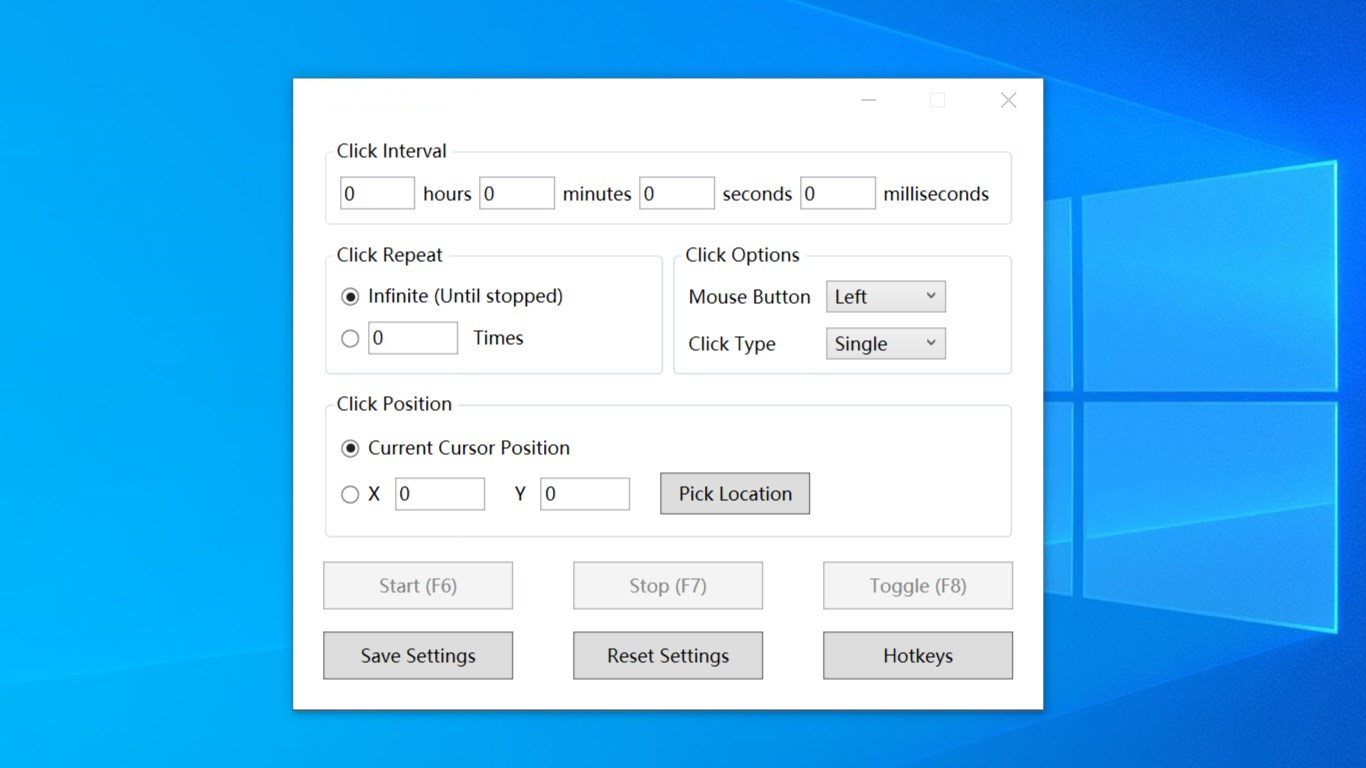
If your auto cast is set to click every 1ms, applications may discard it as noise. In 2026, tools like Auto Clicker - Automatic Tap emphasize 'Gaussian Randomization.' Try a delay of 50ms to 100ms with a variable 'jitter' of +/- 10ms to help bypass basic anti-automation filters.
Fixed X/Y coordinates fail if a button moves or changes color. Switch to a tool that uses Visual Triggers. This ensures the auto cast only fires when the target button is actually visible on screen, solving the 'clicking into a void' problem.
When you can't click auto cast, it is almost always a software-level communication breakdown. By checking administrative permissions, disabling overlays, and adjusting display scaling, you can solve the vast majority of issues. Automation should make your life easier; by configuring your environment for success, you can let the software do the heavy lifting in 2026!
This issue can stem from Windows 12 permission conflicts to complex anti-cheat interference. In this guide, we will provide a step-by-step roadmap to getting your automation back on track.
---
Understanding the 'Auto Cast' Mechanic
In automation software, an 'auto-cast' feature allows the program to automatically trigger a specific action based on a timer or an on-screen trigger. When this fails, it usually manifests in two ways: the button is visually 'unclickable,' or the software thinks it is clicking, but the target application ignores the input.
---
Common Reasons Why You Can't Click Auto Cast
1. Administrative Privilege Mismatch: The #1 cause. If the target app runs as Administrator and your auto-clicker doesn't, Windows blocks the communication for security.
2. User Interface (UI) Overlays: Discord, Steam, or NVIDIA overlays can 'steal' the focus of an auto-clicker.
3. Display Scaling (DPI) Offsets: If your display is scaled to 150%, the coordinates your auto-caster targets may be physically offset from the actual button.
4. Hyperion or Anti-Cheat Interference: Modern apps in 2026 have built-in detection for rapid, perfectly timed clicks, which can lead to inputs being discarded.
---
Step-by-Step Troubleshooting Guide
Step 1: Synchronize Administrative Privileges
Windows protects high-privilege apps from low-privilege scripts.
Step 2: Clear Invisible Overlays
Sometimes, an invisible 'layer' sits on top of your screen, absorbing clicks.
Step 3: Fix DPI Scaling Issues
If your cursor moves to the wrong spot, it’s a coordinate mismatch.
[Image showing Windows Compatibility tab with High DPI override settings highlighted]
---
Advanced Solutions for 2026 Automation
Use 'Human-Like' Randomization
If your auto cast is set to click every 1ms, applications may discard it as noise. In 2026, tools like Auto Clicker - Automatic Tap emphasize 'Gaussian Randomization.' Try a delay of 50ms to 100ms with a variable 'jitter' of +/- 10ms to help bypass basic anti-automation filters.
Shift to Image Recognition (OCR)
Fixed X/Y coordinates fail if a button moves or changes color. Switch to a tool that uses Visual Triggers. This ensures the auto cast only fires when the target button is actually visible on screen, solving the 'clicking into a void' problem.
Conclusion
When you can't click auto cast, it is almost always a software-level communication breakdown. By checking administrative permissions, disabling overlays, and adjusting display scaling, you can solve the vast majority of issues. Automation should make your life easier; by configuring your environment for success, you can let the software do the heavy lifting in 2026!