
Why You Can’t Click Auto Lock on Your iPhone: Top 5 Fixes for Automation Users
For power users and those utilizing automation tools, the iPhone’s “Auto-Lock” feature is essential. Whether you are running a complex script, using an auto-clicker for gaming, or monitoring a live data feed, having your screen suddenly go black can be a major productivity killer. However, many users in 2026 often encounter a frustrating hurdle: they navigate to their settings only to find they can’t click Auto Lock on their iPhone because the option is grayed out.
In this comprehensive guide, we will explore exactly why this happens and provide step-by-step solutions to restore your control. If you are tired of your automation being interrupted by a sleeping device, you are in the right place.
---
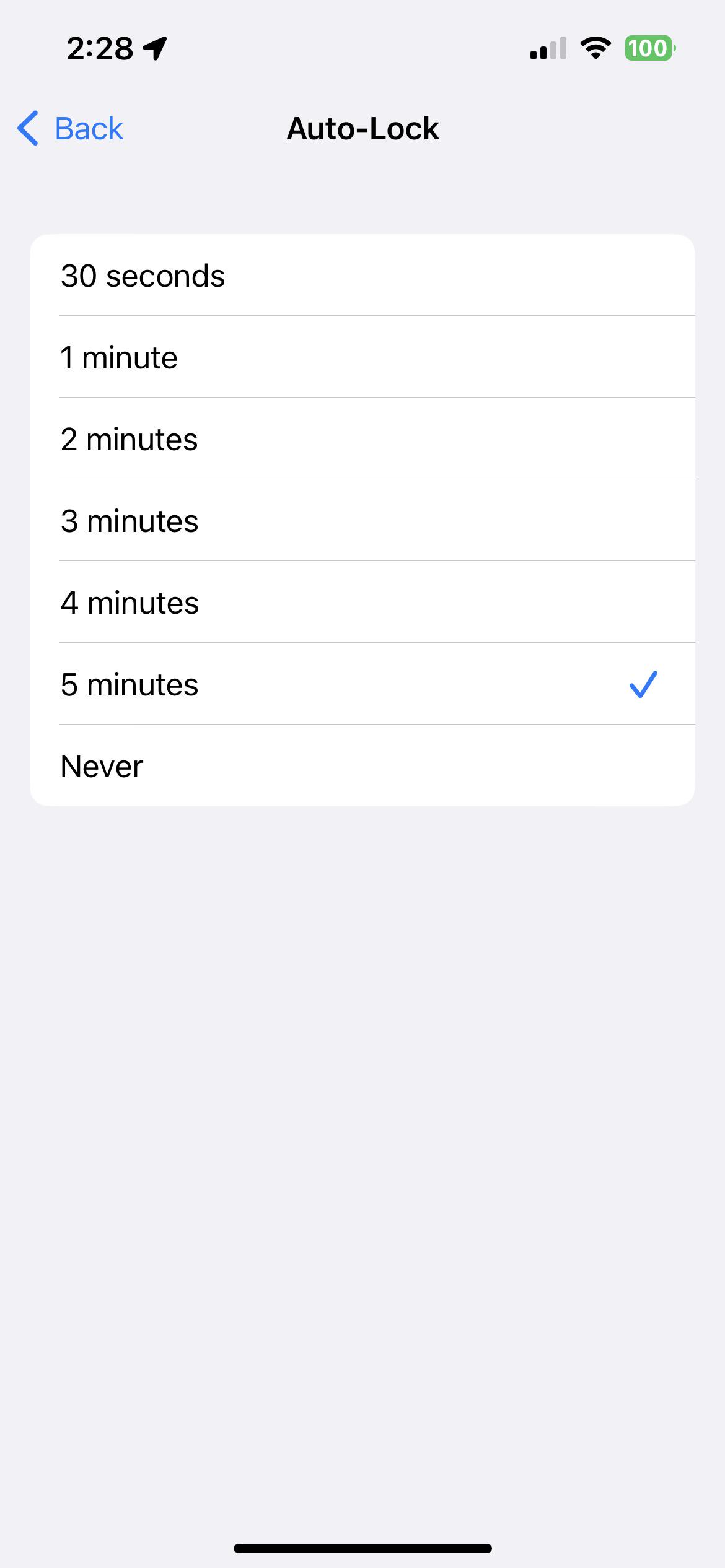
Under normal circumstances, you can adjust your settings by going to Settings > Display & Brightness > Auto-Lock. If the text is grayed out, a system-level restriction or power-saving mode is overriding your manual preferences. For users interested in automation, this is particularly problematic because tools like Auto Clicker - Automatic Tap or native Switch Control require an active screen to function.
---
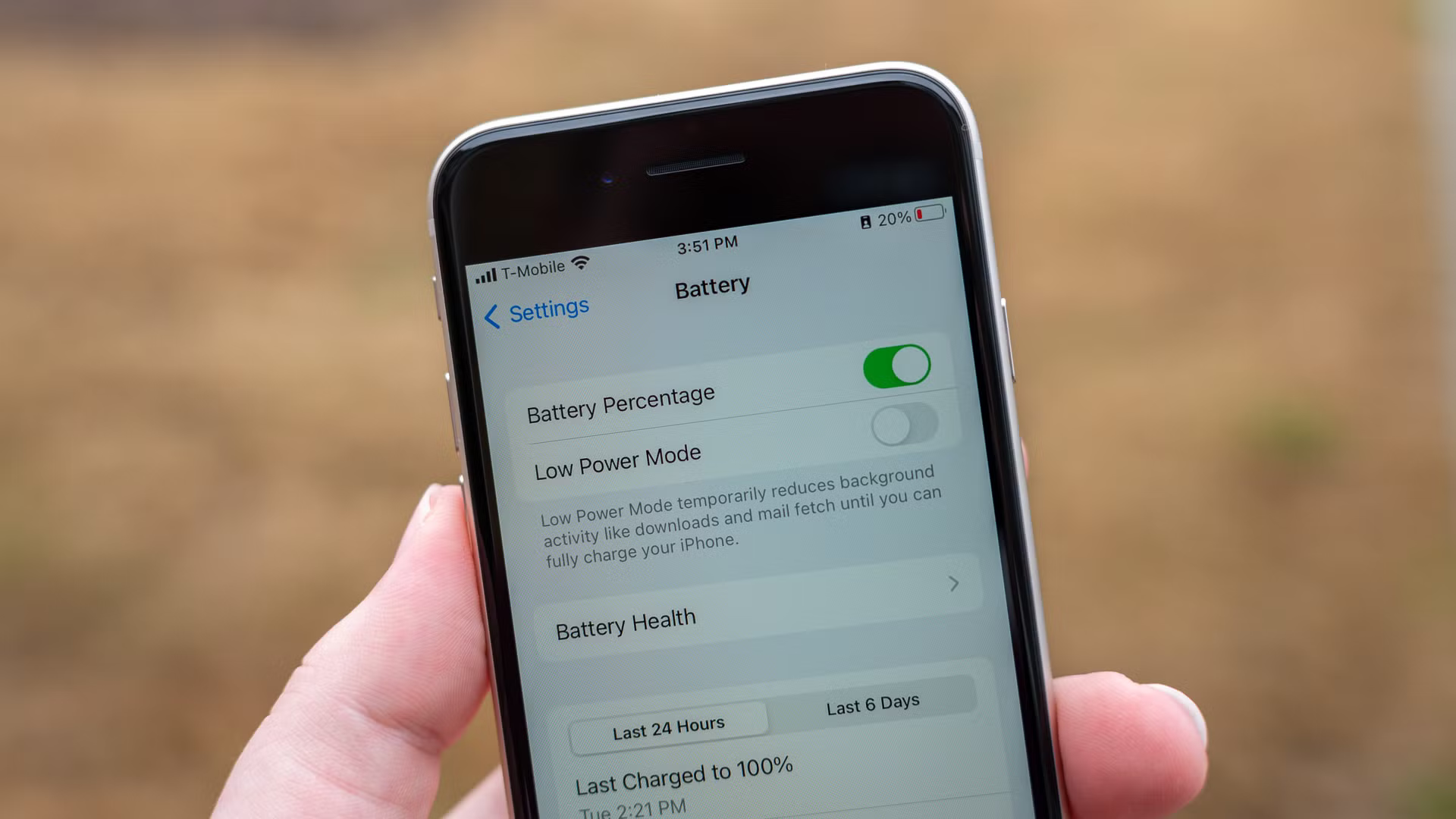
The most frequent reason you can’t click Auto Lock is that Low Power Mode is enabled. To preserve battery, Apple automatically restricts the Auto-Lock timer to 30 seconds when this mode is active.
2. Toggle off Low Power Mode.
3. Return to Display & Brightness; the option should now be clickable.
Pro Tip for 2026: If you run automation scripts that drain your battery, keep your iPhone plugged into a power source. This prevents the OS from forcing Low Power Mode mid-task.
---
If your iPhone has a Configuration Profile or MDM (Mobile Device Management) software installed, organizations often enforce strict security policies that lock the screen to protect sensitive data.
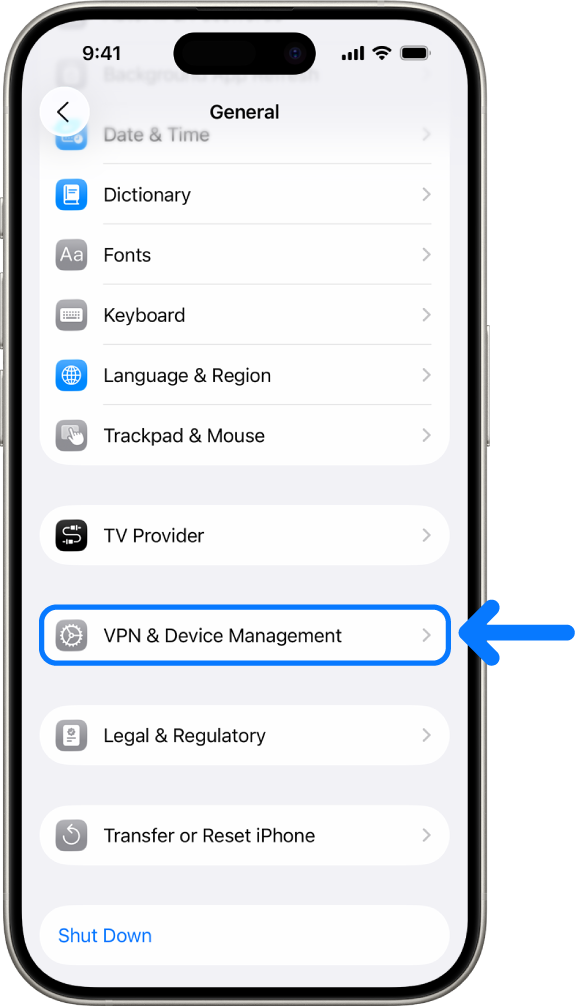
2. If you see a work or school profile, this is likely the cause. Removing these profiles usually requires administrative permission, but doing so will restore your full display settings.
---
Apple’s Screen Time feature can lock certain system settings. If you have specific privacy restrictions enabled, the ability to change display timeouts might be blocked.
2. If enabled, check the "Allow Changes" section or temporarily toggle the restrictions off to see if Auto-Lock becomes accessible.
---
Adding a corporate email account (like Microsoft Exchange) can trigger security overrides. These server policies can require a maximum timeout to ensure the phone remains secure.
2. Temporarily toggle off the Exchange account.
3. Check if Auto-Lock is restored. If so, you may need to use a third-party app for work email rather than the native Mail app.
---
In 2026, minor bugs in the latest iOS versions can occasionally cause settings to hang.
Force Restart: Quickly press Volume Up, Volume Down, then hold the Side Button until the Apple logo appears.
Reset All Settings: If a restart fails, go to Settings > General > Transfer or Reset iPhone > Reset > Reset All Settings. This resets your system preferences without deleting data.
---
If you are a mobile developer or power user, you know that a locked screen usually pauses all front-end processes. Setting Auto-Lock to "Never" ensures that:Macros don't break: Tools like Auto Clicker - Automatic Tap require the UI to be visible.
Data Monitoring: Dashboards and live feeds stay active.
App Stability: Some apps stop processing background tasks the moment the device locks.
Not being able to click Auto-Lock is usually a sign that your phone is prioritizing security or battery life. By following the steps above, you can regain control and ensure your iPhone stays awake as long as your automation requires. Keep your device updated to the latest 2026 firmware to ensure the smoothest experience with your automation toolkit!
In this comprehensive guide, we will explore exactly why this happens and provide step-by-step solutions to restore your control. If you are tired of your automation being interrupted by a sleeping device, you are in the right place.
---
The Problem: Why is iPhone Auto-Lock Grayed Out?
Under normal circumstances, you can adjust your settings by going to Settings > Display & Brightness > Auto-Lock. If the text is grayed out, a system-level restriction or power-saving mode is overriding your manual preferences. For users interested in automation, this is particularly problematic because tools like Auto Clicker - Automatic Tap or native Switch Control require an active screen to function.
---
1. The Most Common Culprit: Low Power Mode
The most frequent reason you can’t click Auto Lock is that Low Power Mode is enabled. To preserve battery, Apple automatically restricts the Auto-Lock timer to 30 seconds when this mode is active.
How to Fix It:
1. Open Settings > Battery.2. Toggle off Low Power Mode.
3. Return to Display & Brightness; the option should now be clickable.
Pro Tip for 2026: If you run automation scripts that drain your battery, keep your iPhone plugged into a power source. This prevents the OS from forcing Low Power Mode mid-task.
---
2. Managed Device Profiles (Work or School)
If your iPhone has a Configuration Profile or MDM (Mobile Device Management) software installed, organizations often enforce strict security policies that lock the screen to protect sensitive data.
How to Fix It:
1. Go to Settings > General > VPN & Device Management.2. If you see a work or school profile, this is likely the cause. Removing these profiles usually requires administrative permission, but doing so will restore your full display settings.
---
3. Screen Time & Content Restrictions
Apple’s Screen Time feature can lock certain system settings. If you have specific privacy restrictions enabled, the ability to change display timeouts might be blocked.
How to Fix It:
1. Navigate to Settings > Screen Time > Content & Privacy Restrictions.2. If enabled, check the "Allow Changes" section or temporarily toggle the restrictions off to see if Auto-Lock becomes accessible.
---
4. Microsoft Exchange Account Policies
Adding a corporate email account (like Microsoft Exchange) can trigger security overrides. These server policies can require a maximum timeout to ensure the phone remains secure.
How to Fix It:
1. Go to Settings > Mail > Accounts.2. Temporarily toggle off the Exchange account.
3. Check if Auto-Lock is restored. If so, you may need to use a third-party app for work email rather than the native Mail app.
---
5. Software Glitches in iOS 19/20
In 2026, minor bugs in the latest iOS versions can occasionally cause settings to hang.
How to Fix It:
---
Why Auto-Lock Matters for Automation
If you are a mobile developer or power user, you know that a locked screen usually pauses all front-end processes. Setting Auto-Lock to "Never" ensures that:
Conclusion: Regaining Control
Not being able to click Auto-Lock is usually a sign that your phone is prioritizing security or battery life. By following the steps above, you can regain control and ensure your iPhone stays awake as long as your automation requires. Keep your device updated to the latest 2026 firmware to ensure the smoothest experience with your automation toolkit!